

Minimal
Less on screen, nothing taken away. The top toolbar is gone, and its tools sit as icons in one sidebar, named as you point at them.
Search, read and organise your books in one window, with every tool in a single sidebar. Same library, fewer steps, and you can switch back to Classic anytime.
Less on screen, nothing taken away. The top toolbar is gone, and its tools sit as icons in one sidebar, named as you point at them.
Every task takes fewer steps. One click opens a book, one drag (or ⇧) picks many, another files them into a folder.
Books sit inside their folders, not in a column below. Control panel and notes are one canvas each, so your eyes stay put.
Drag sections into your own order and pin the ones you use most. Put the sidebar on any edge and pick a layout for each of your screens.
Drag the line to compare the same screen in both.
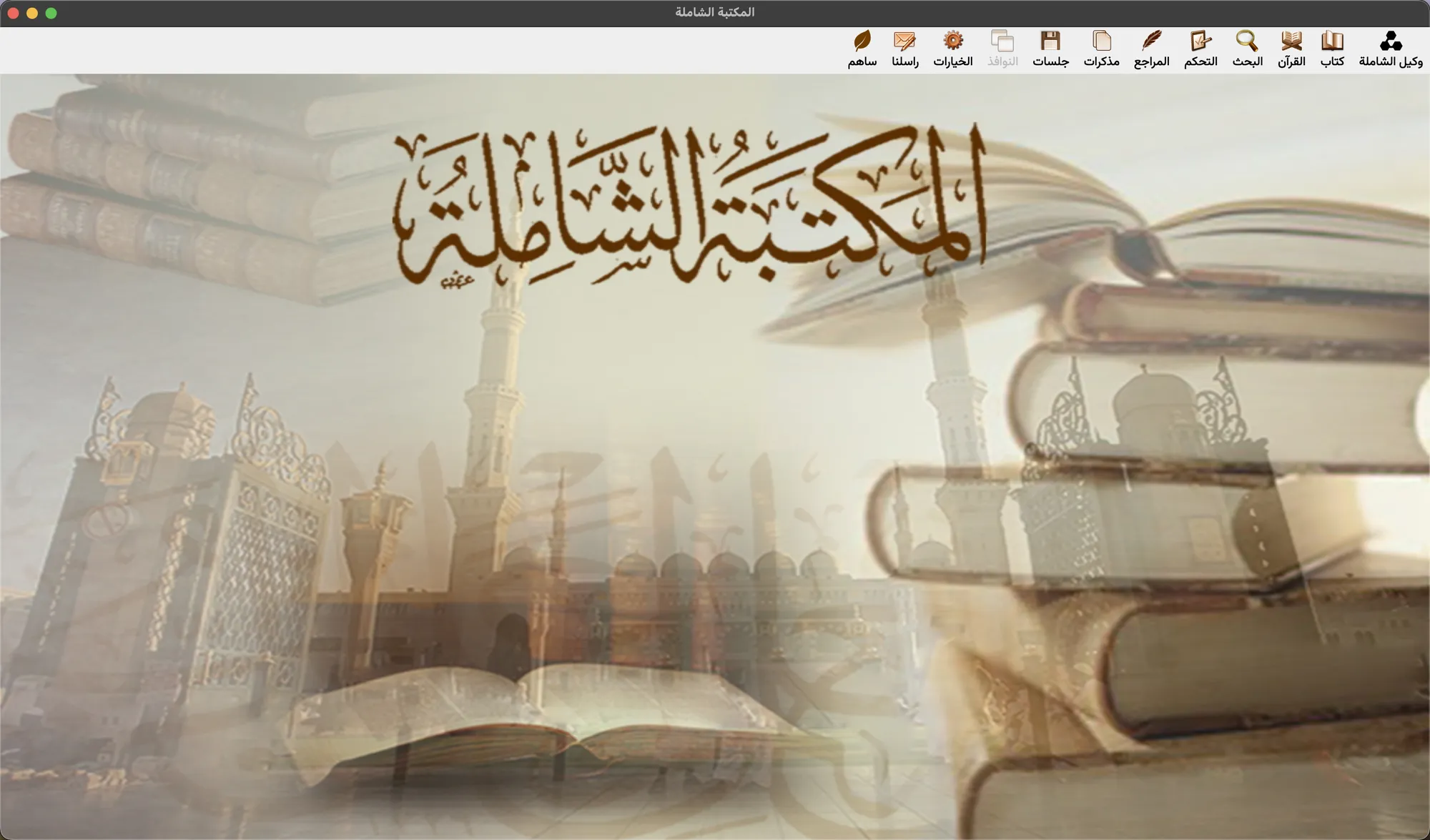
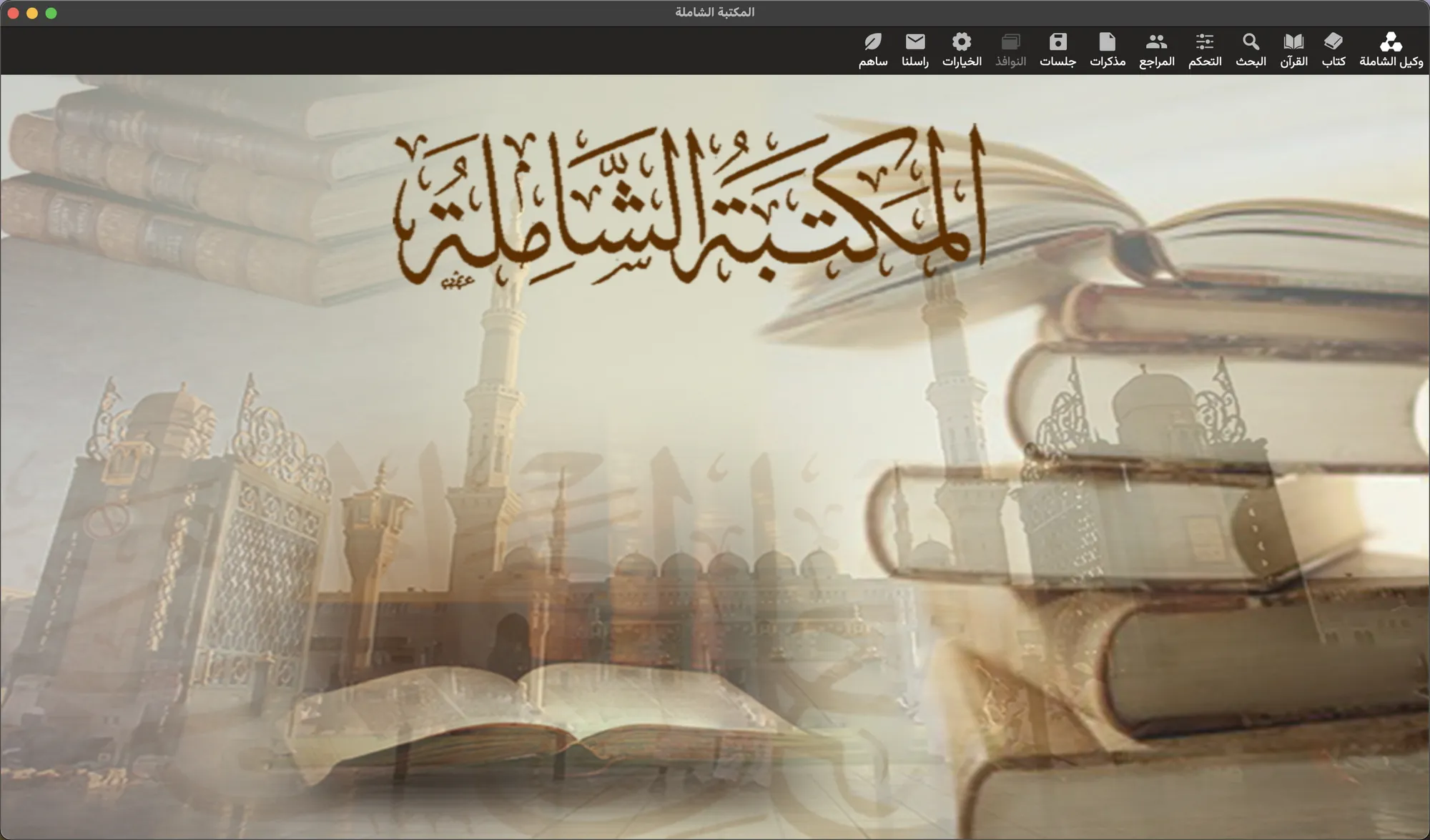
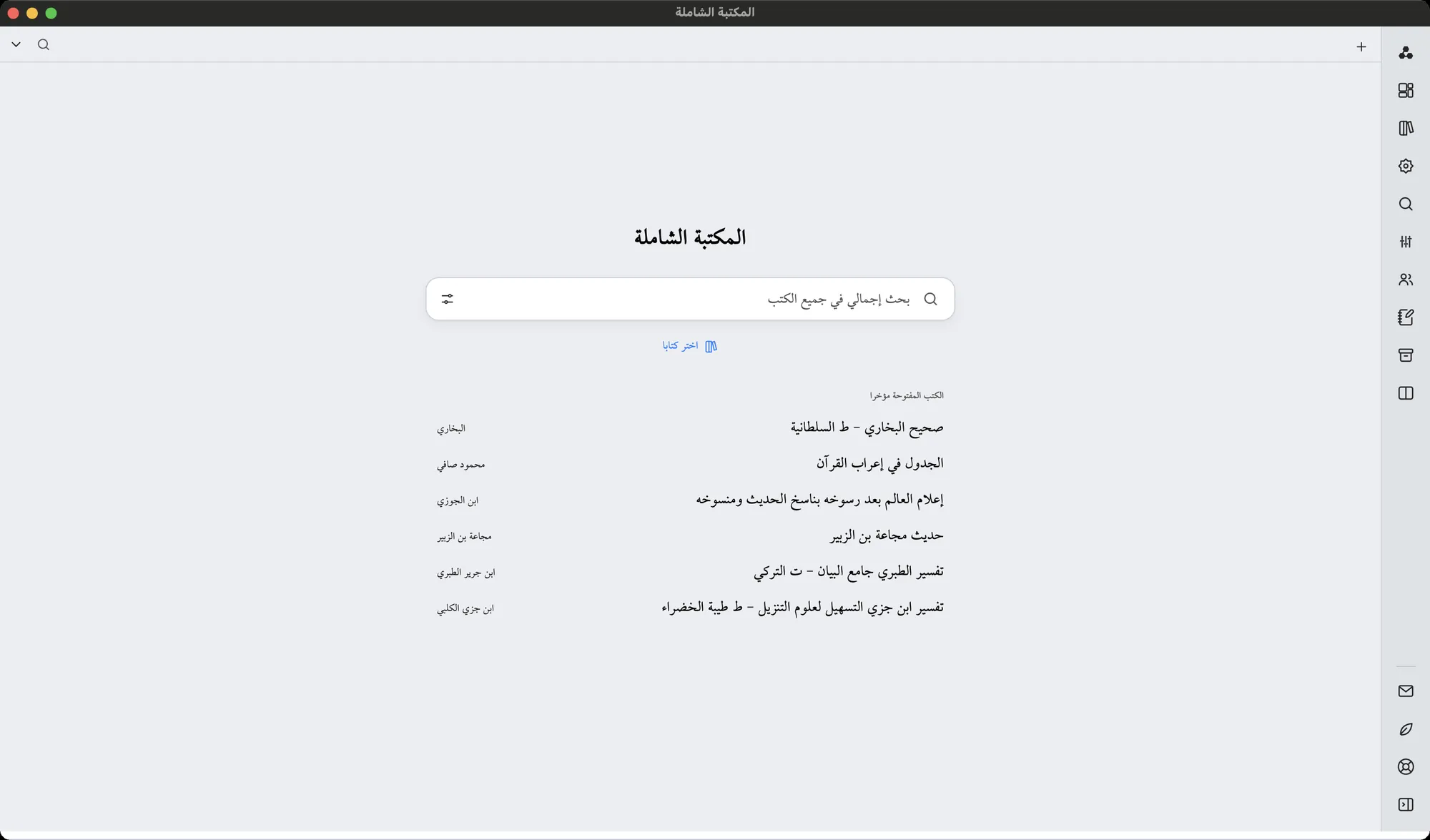
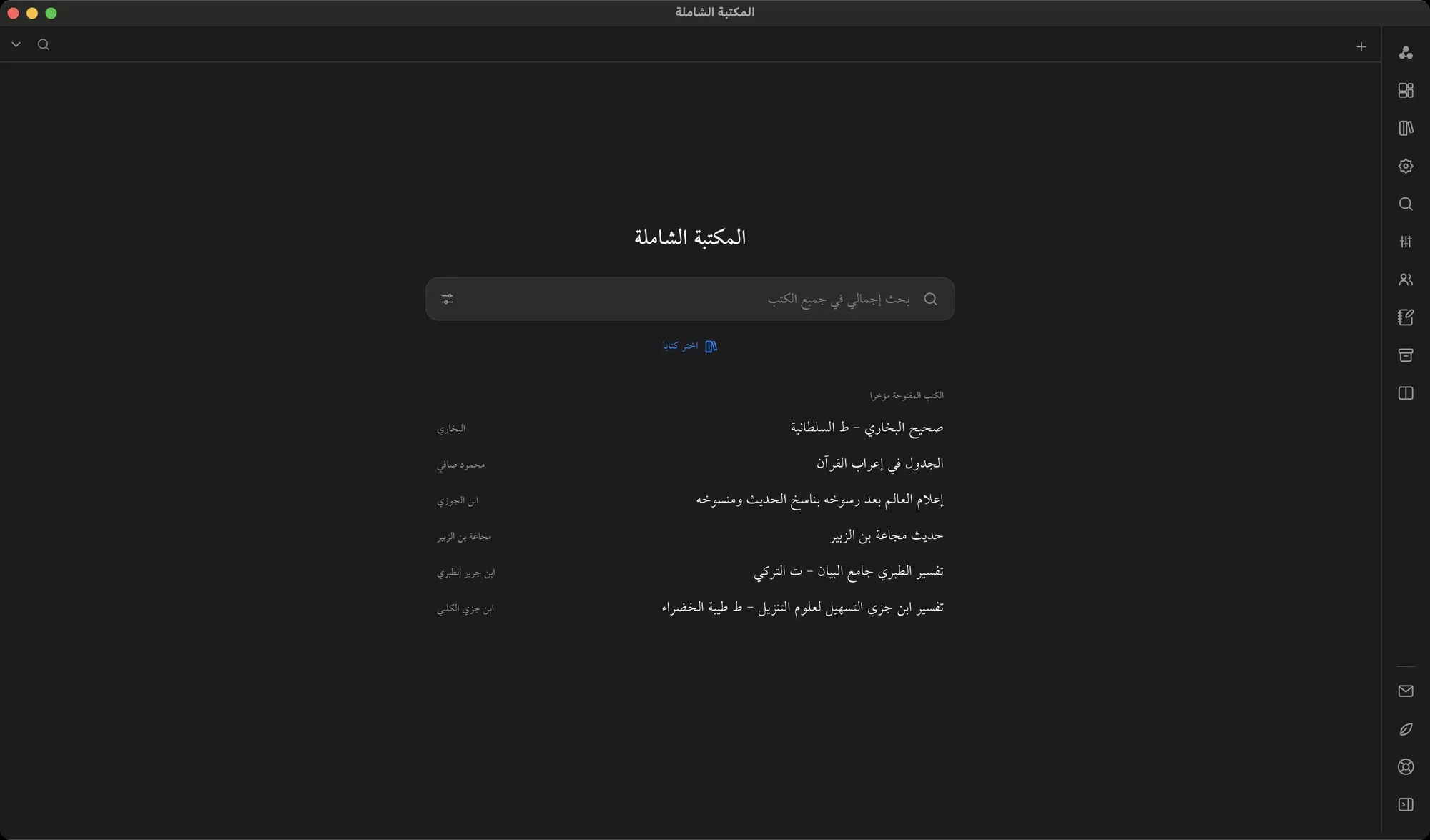
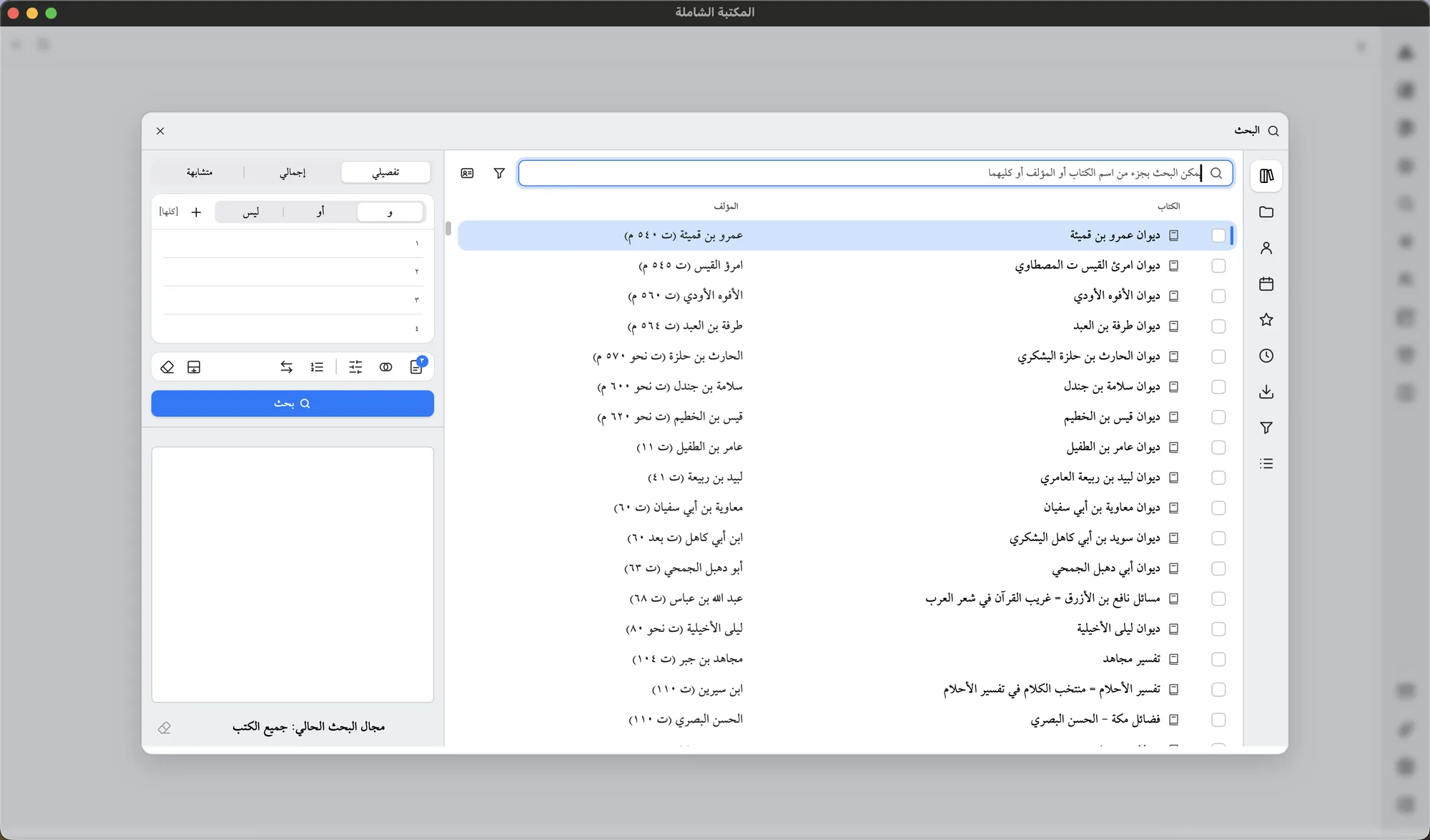
A search box and the books you opened last, in place of a picture.
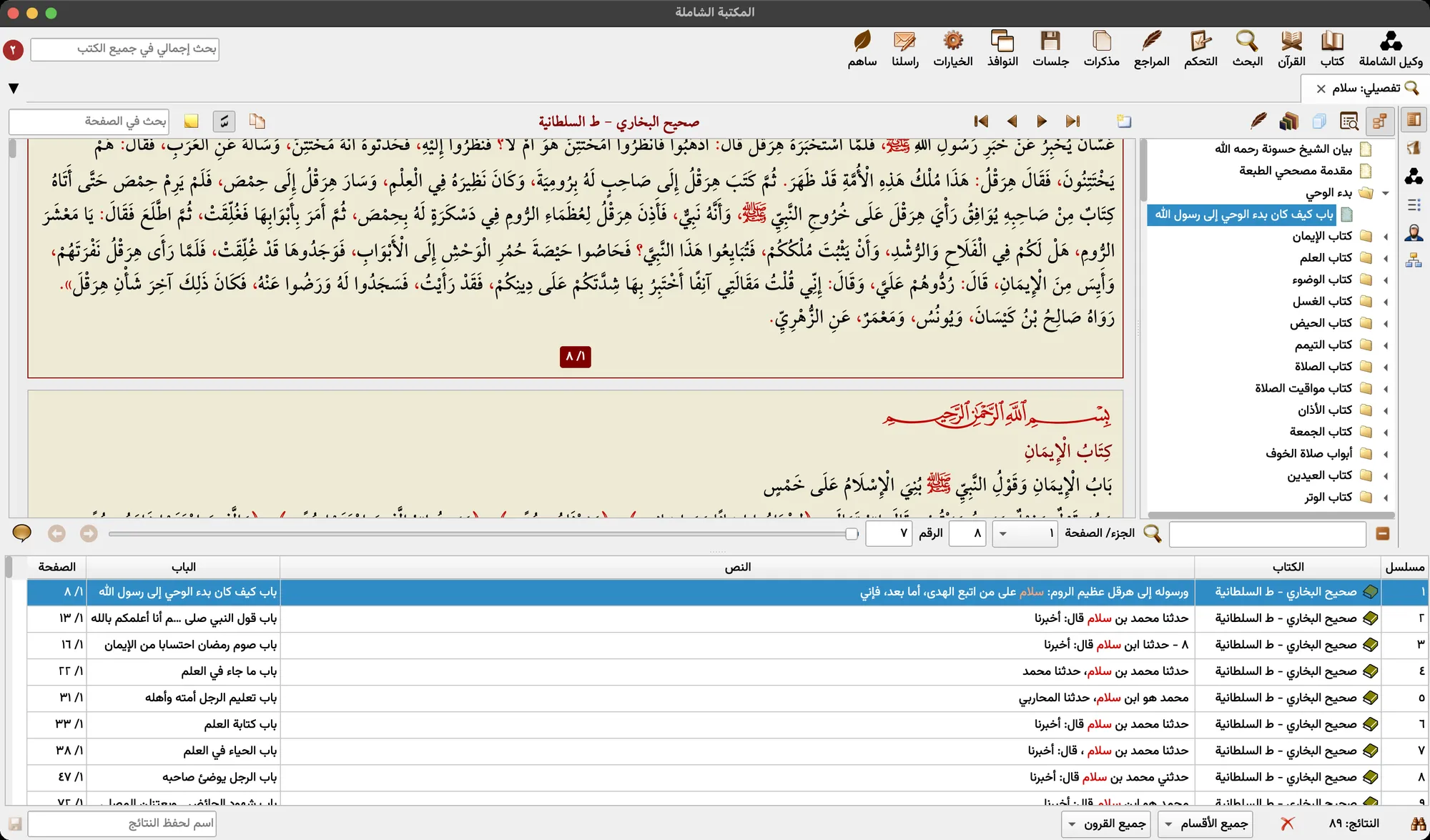
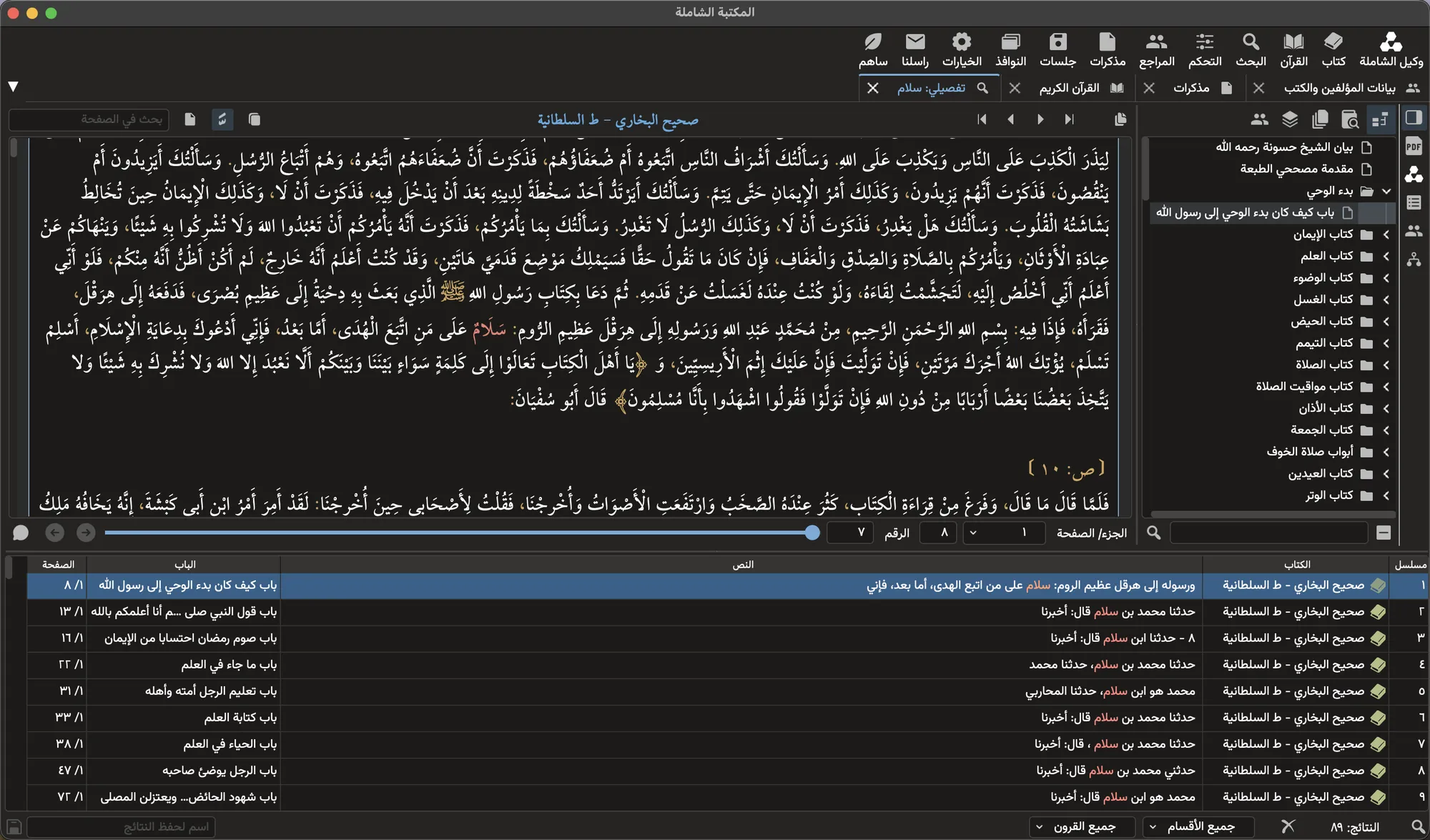
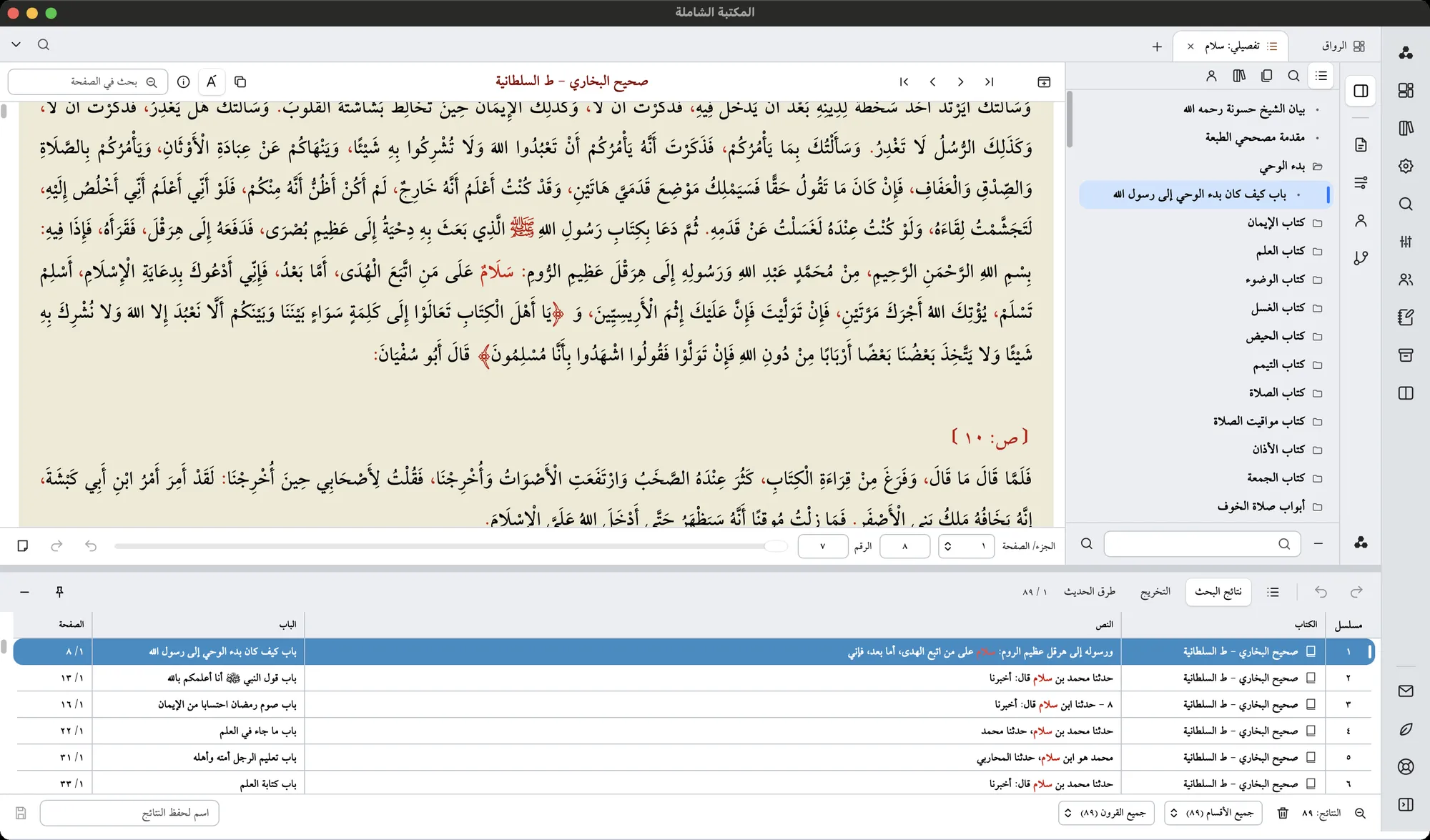
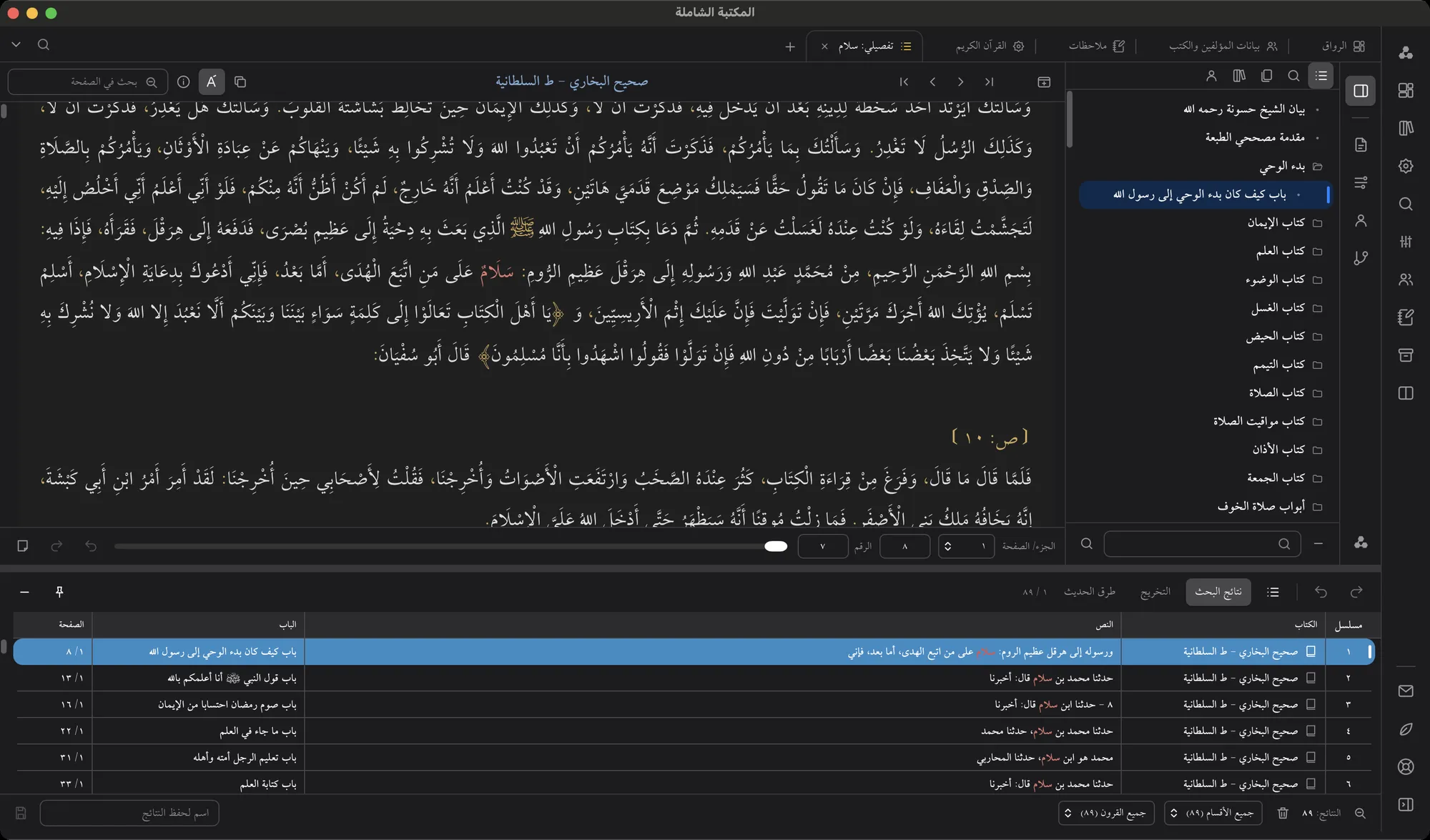
A book and its search results side by side, with one sidebar in place of the top toolbar.
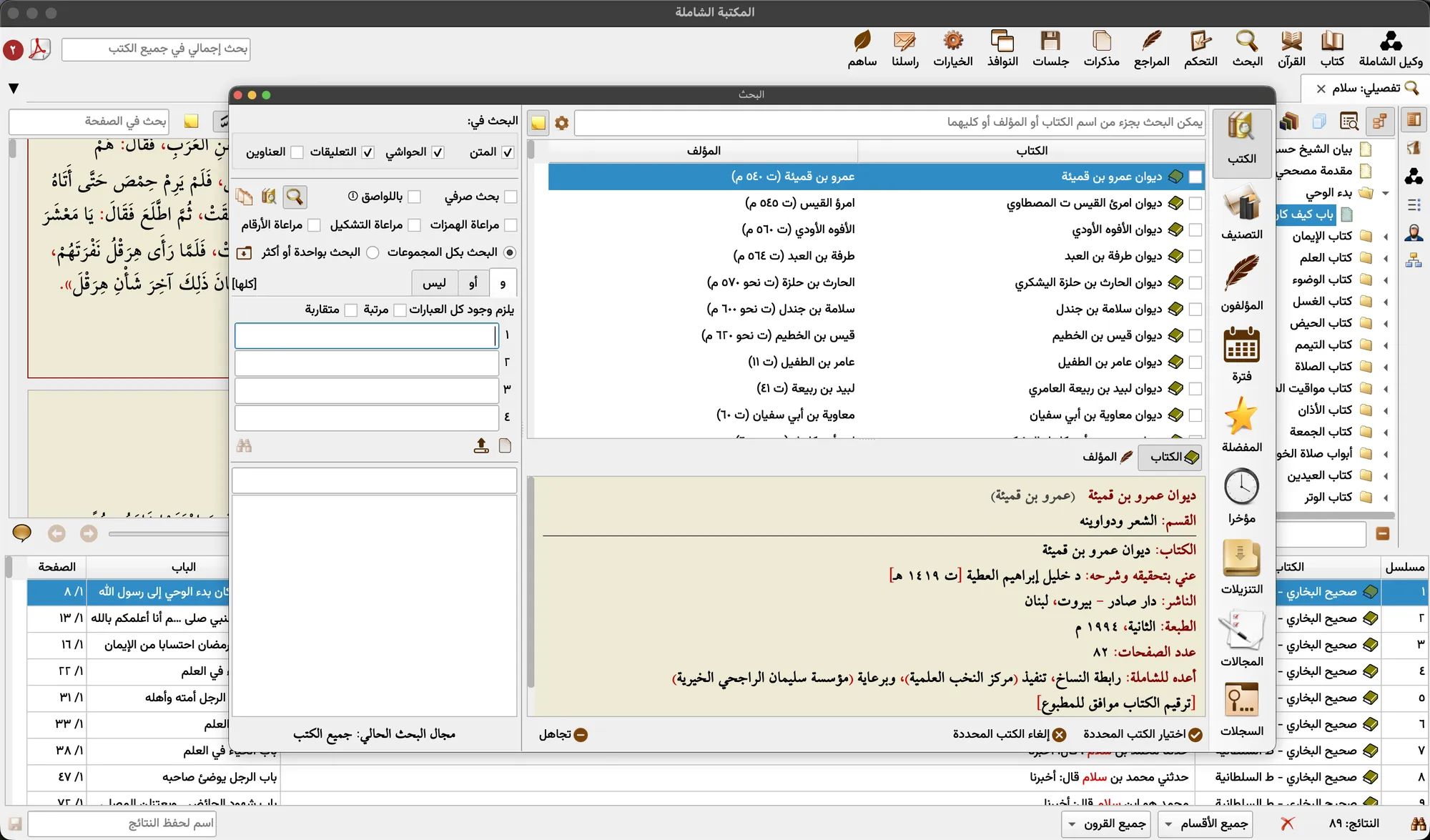
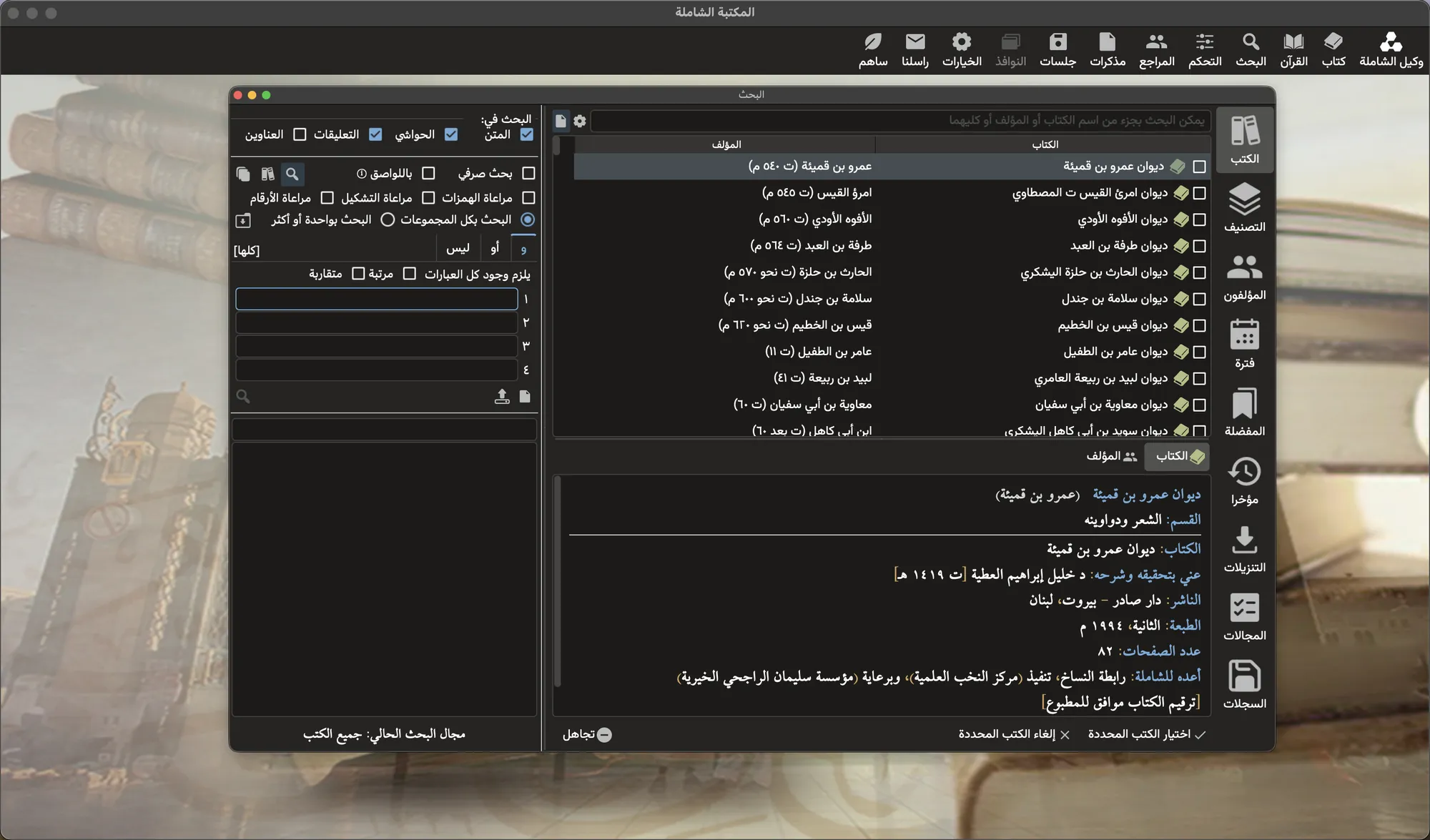
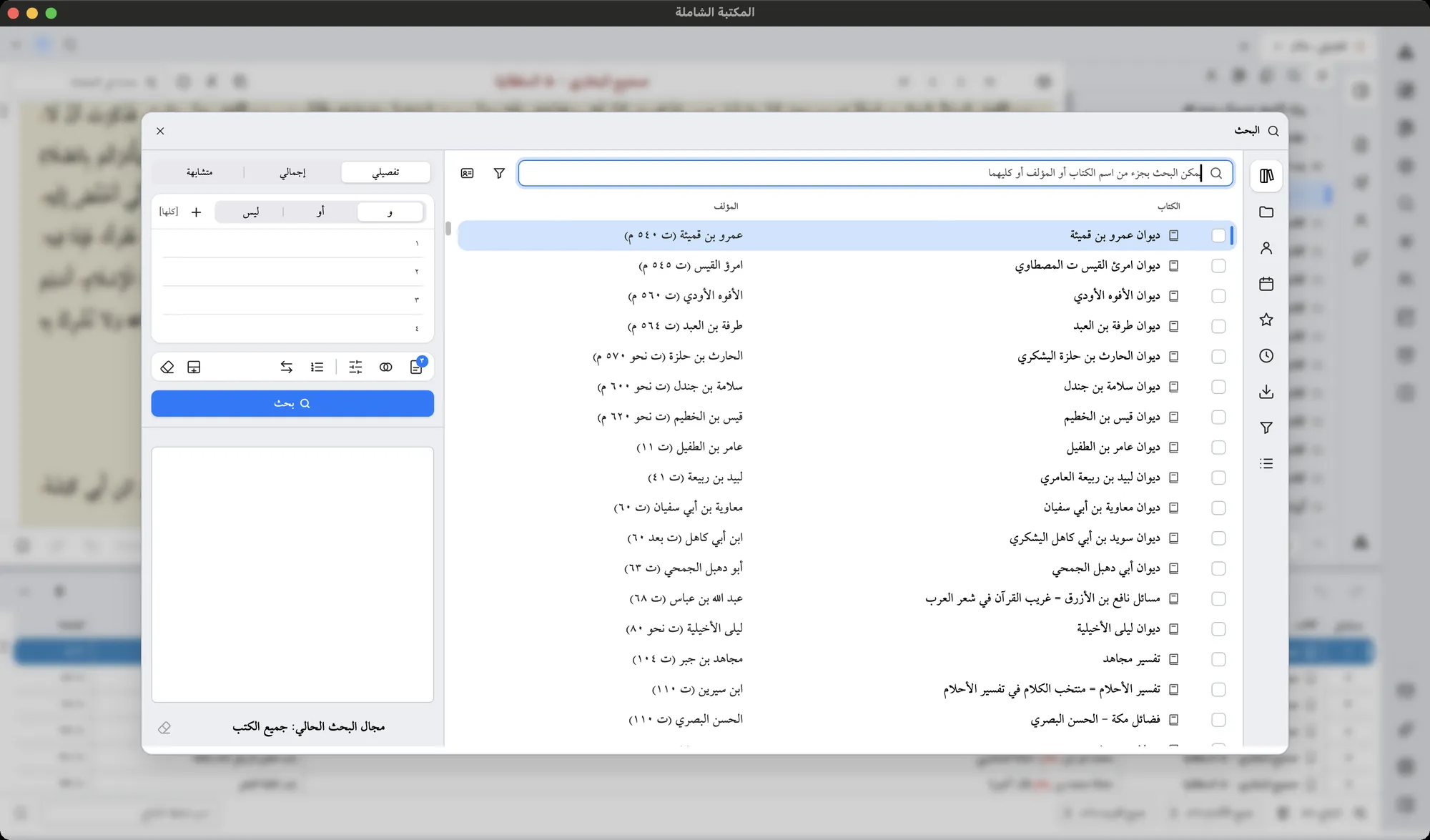
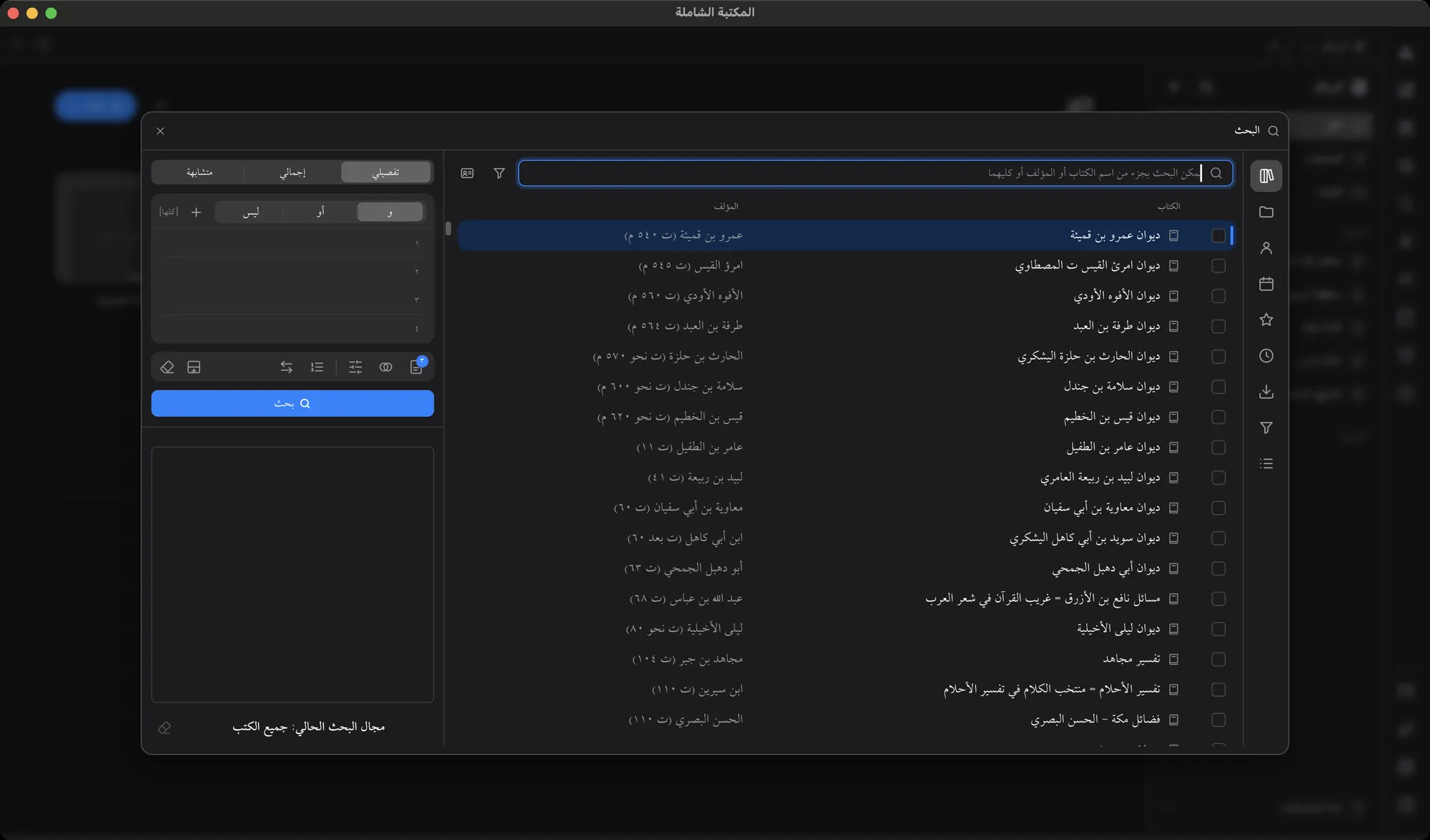
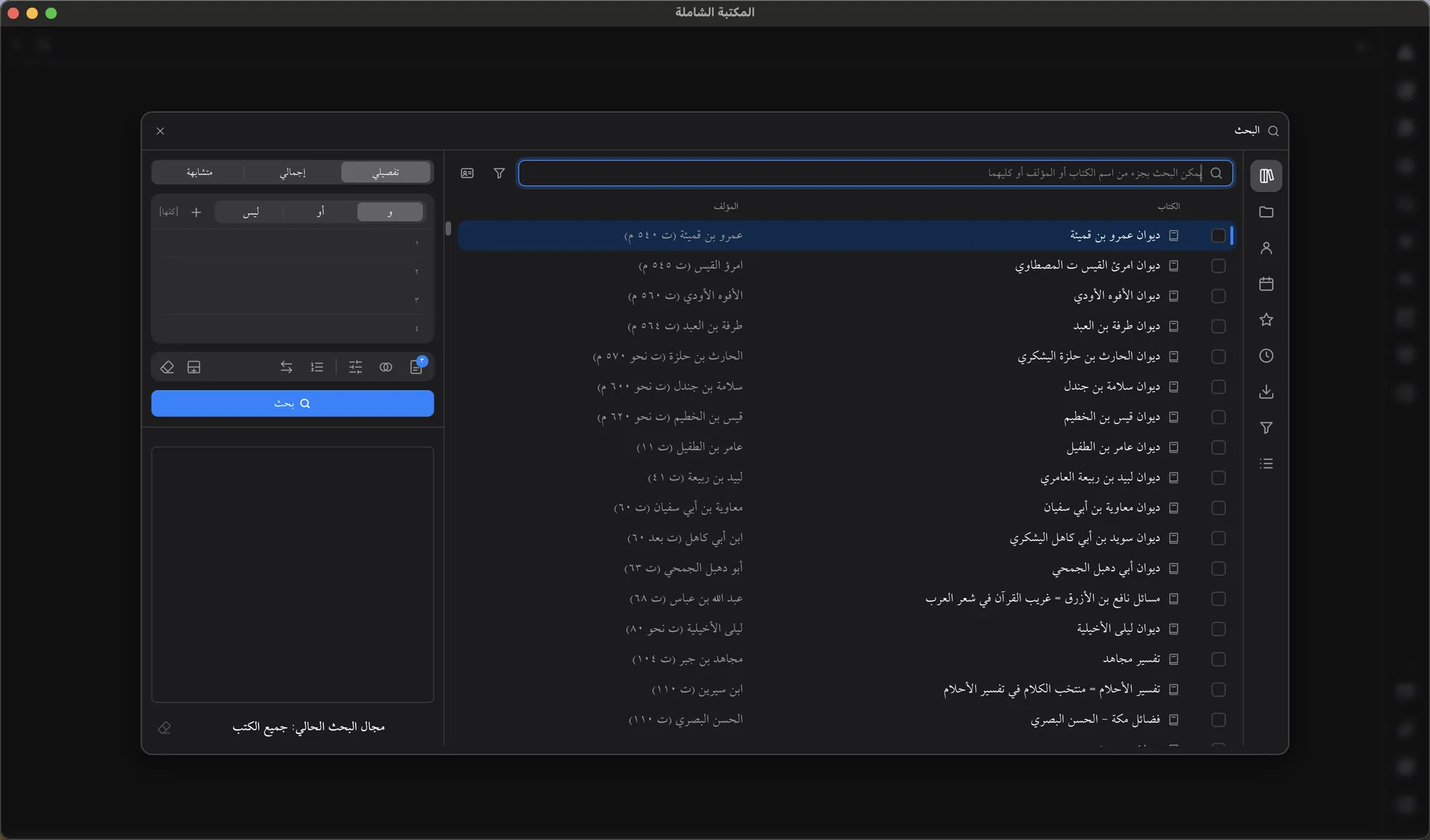
The same search tools, in one calm window.
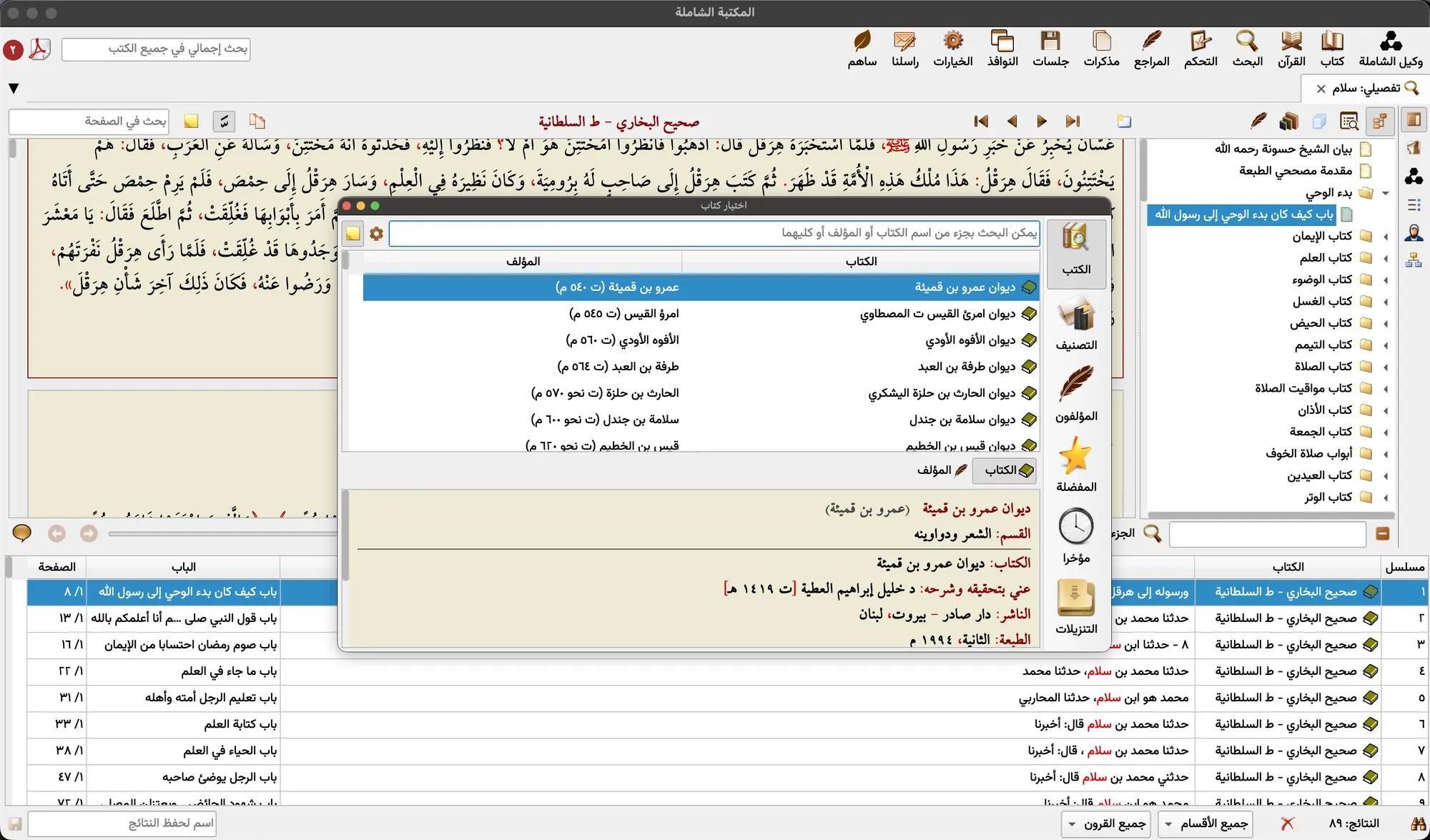
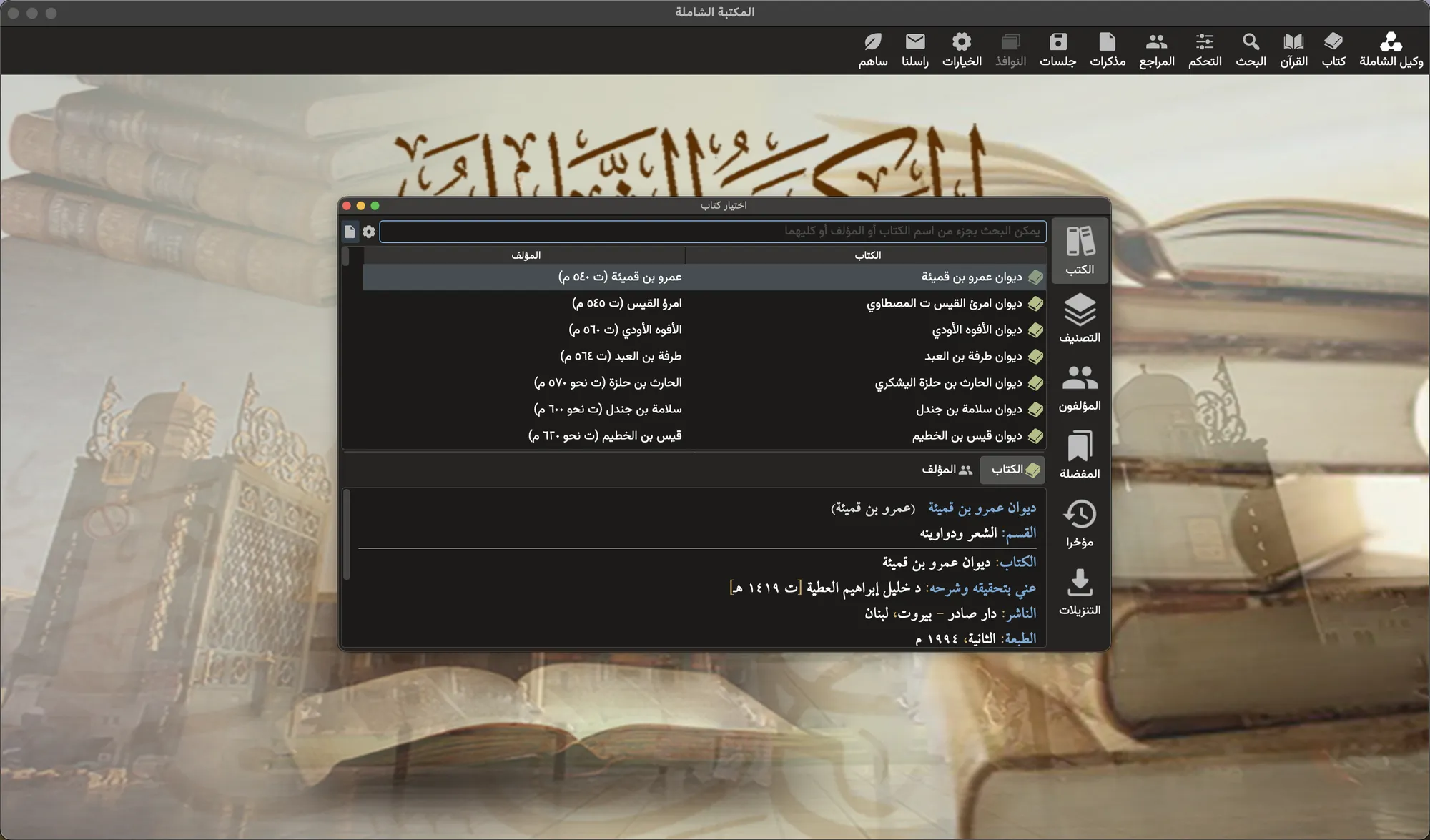
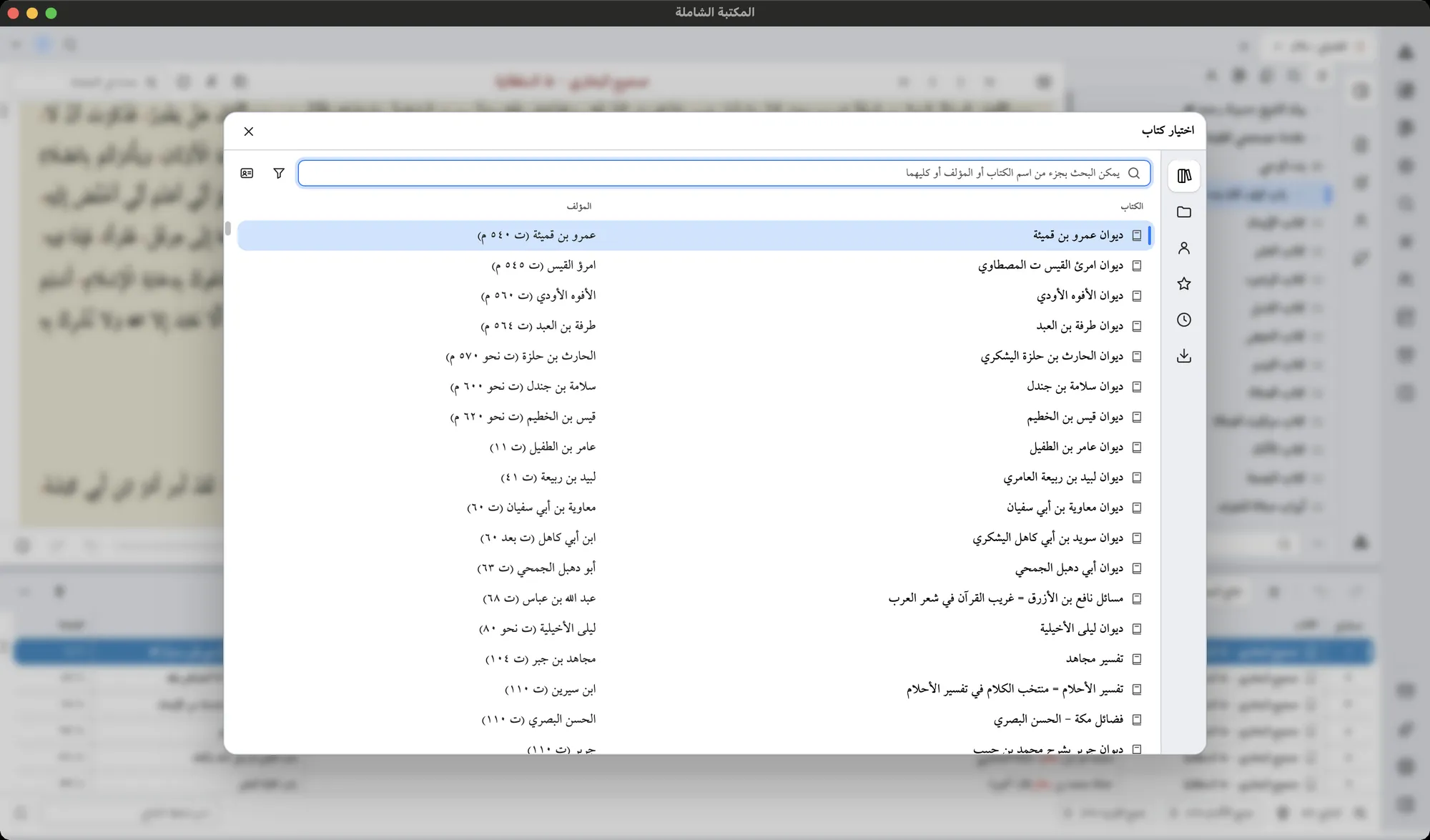
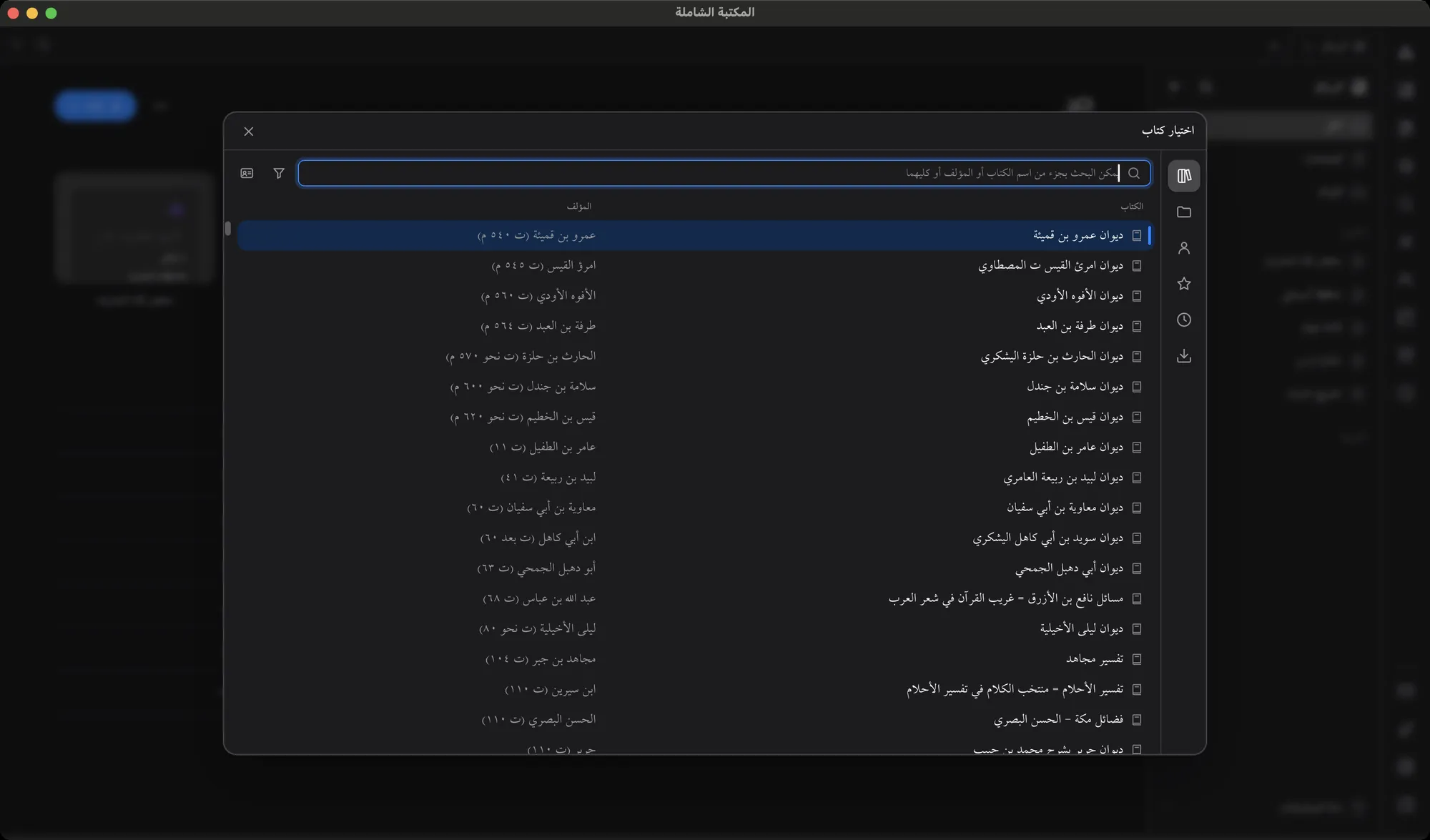
Open a book in one click, or drag to pick a whole set for your search. No footer button.
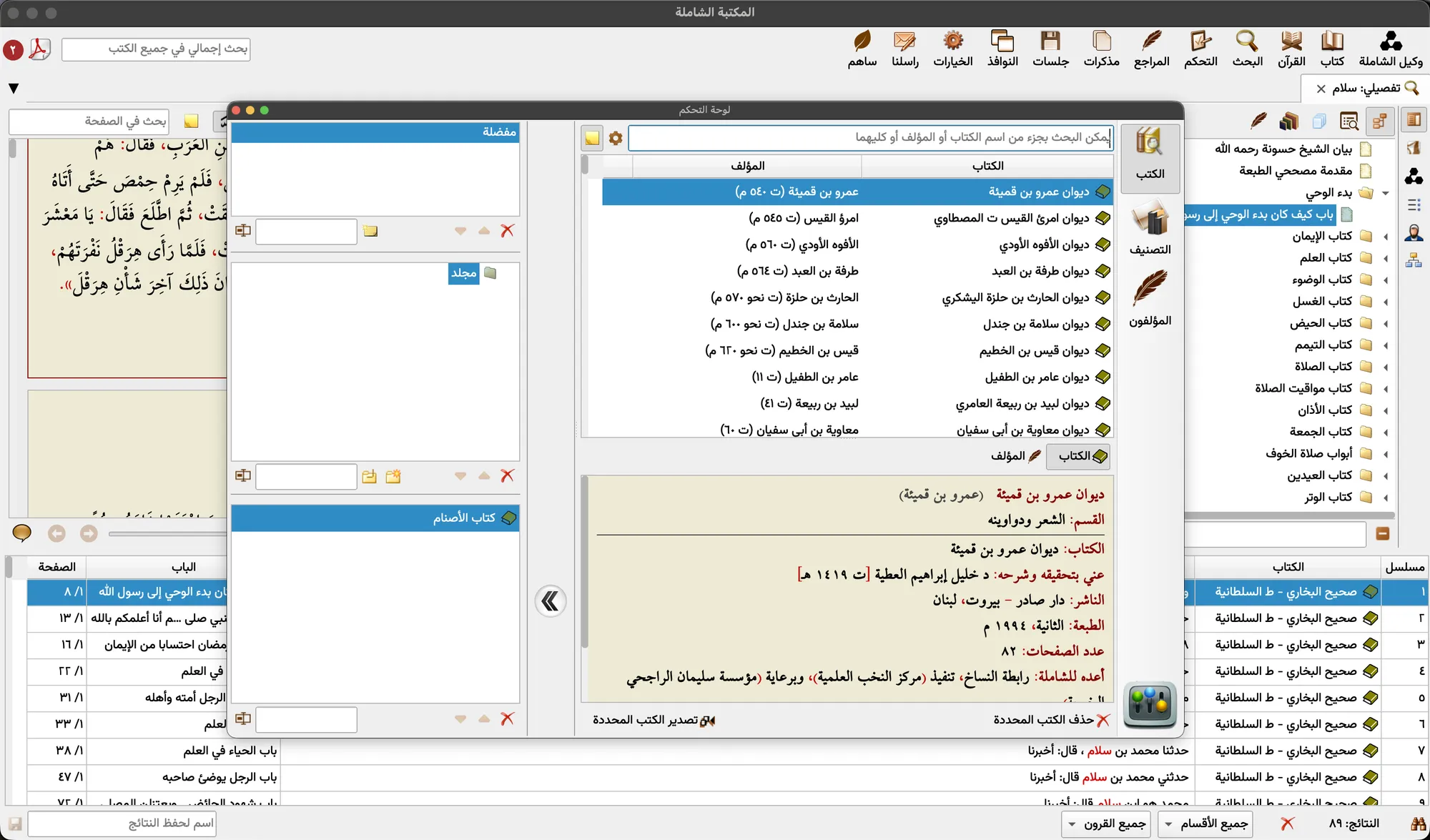
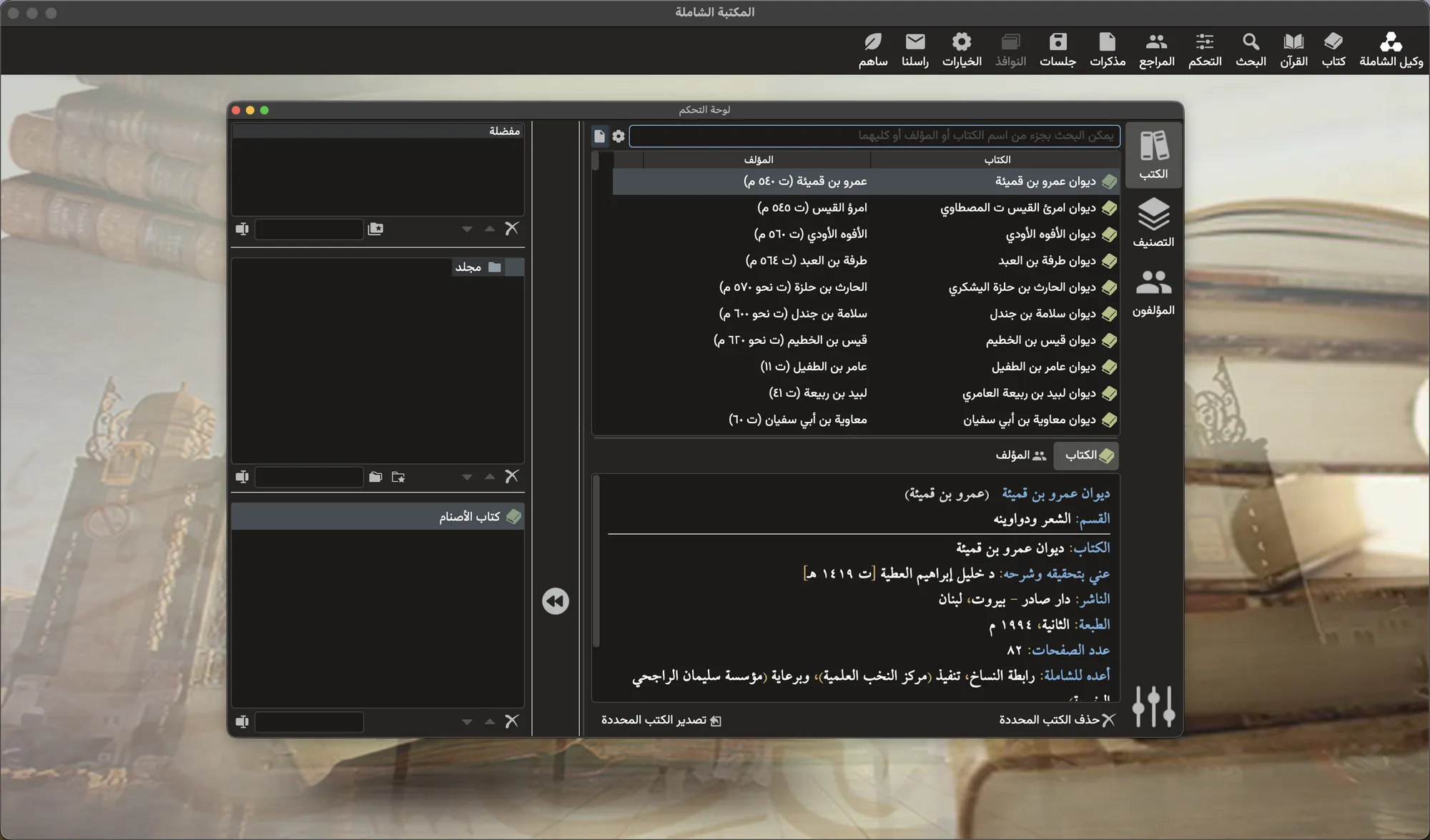
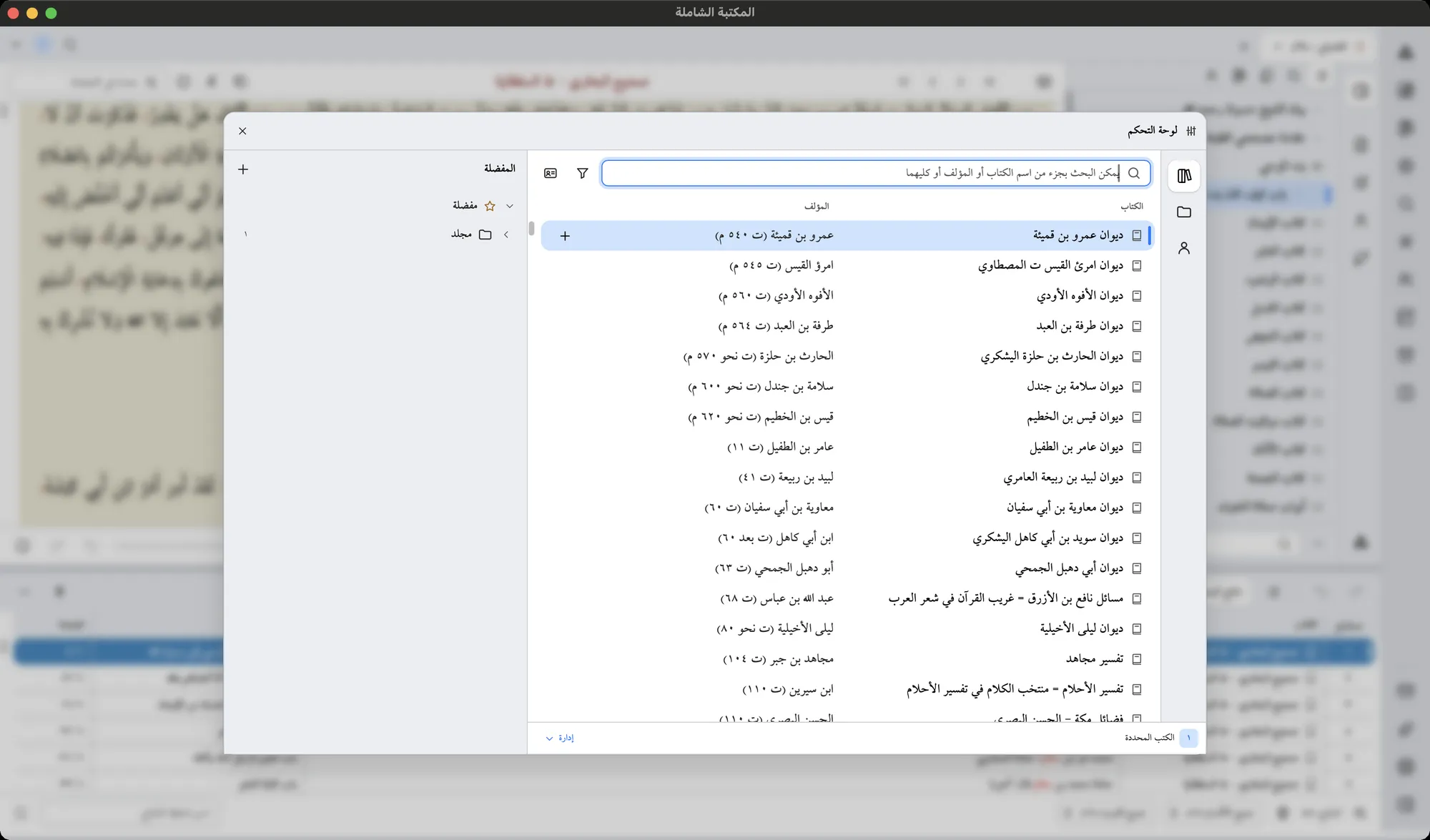
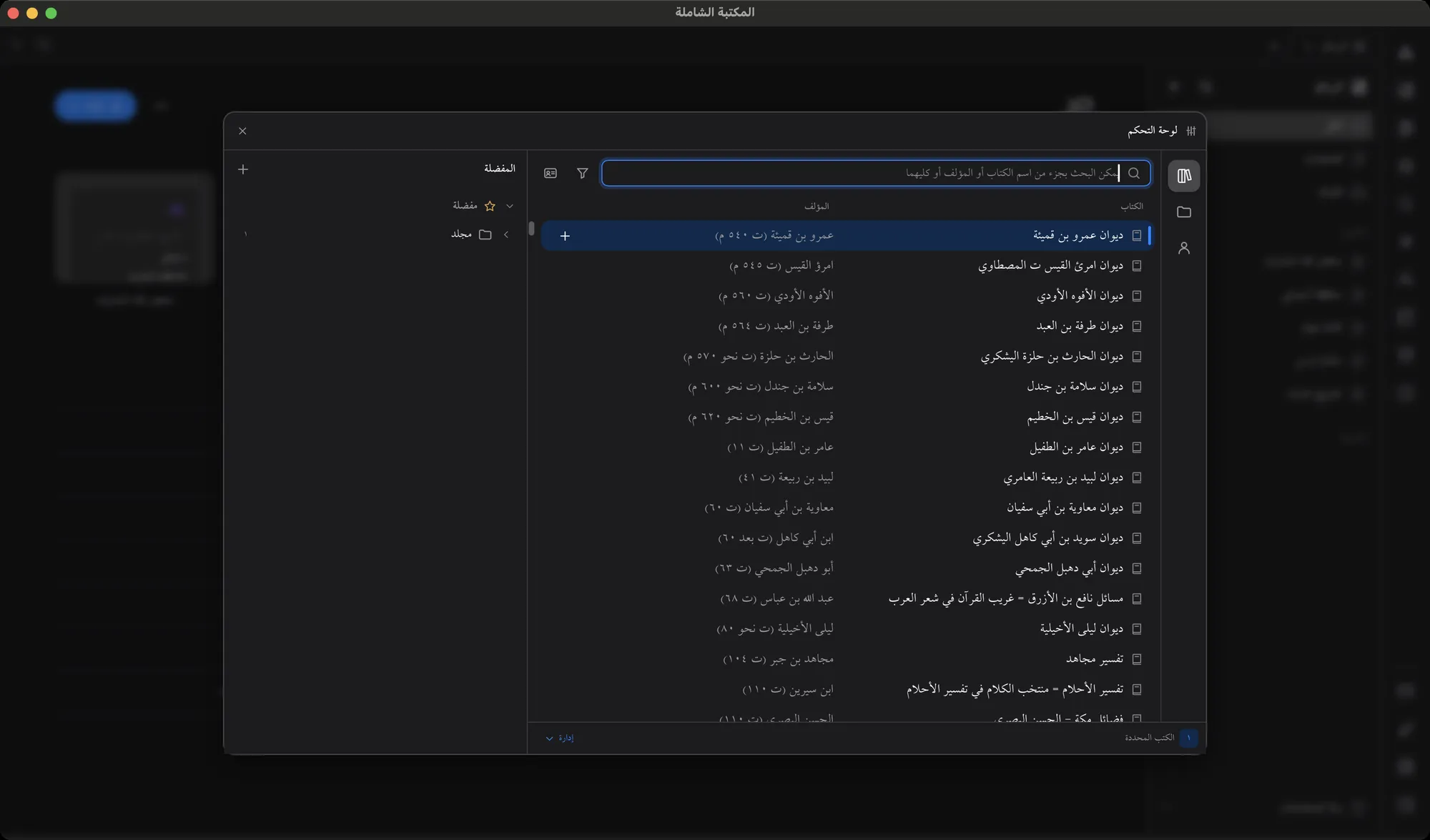
Your books and favourites on one canvas, not three boxes stacked top to bottom.
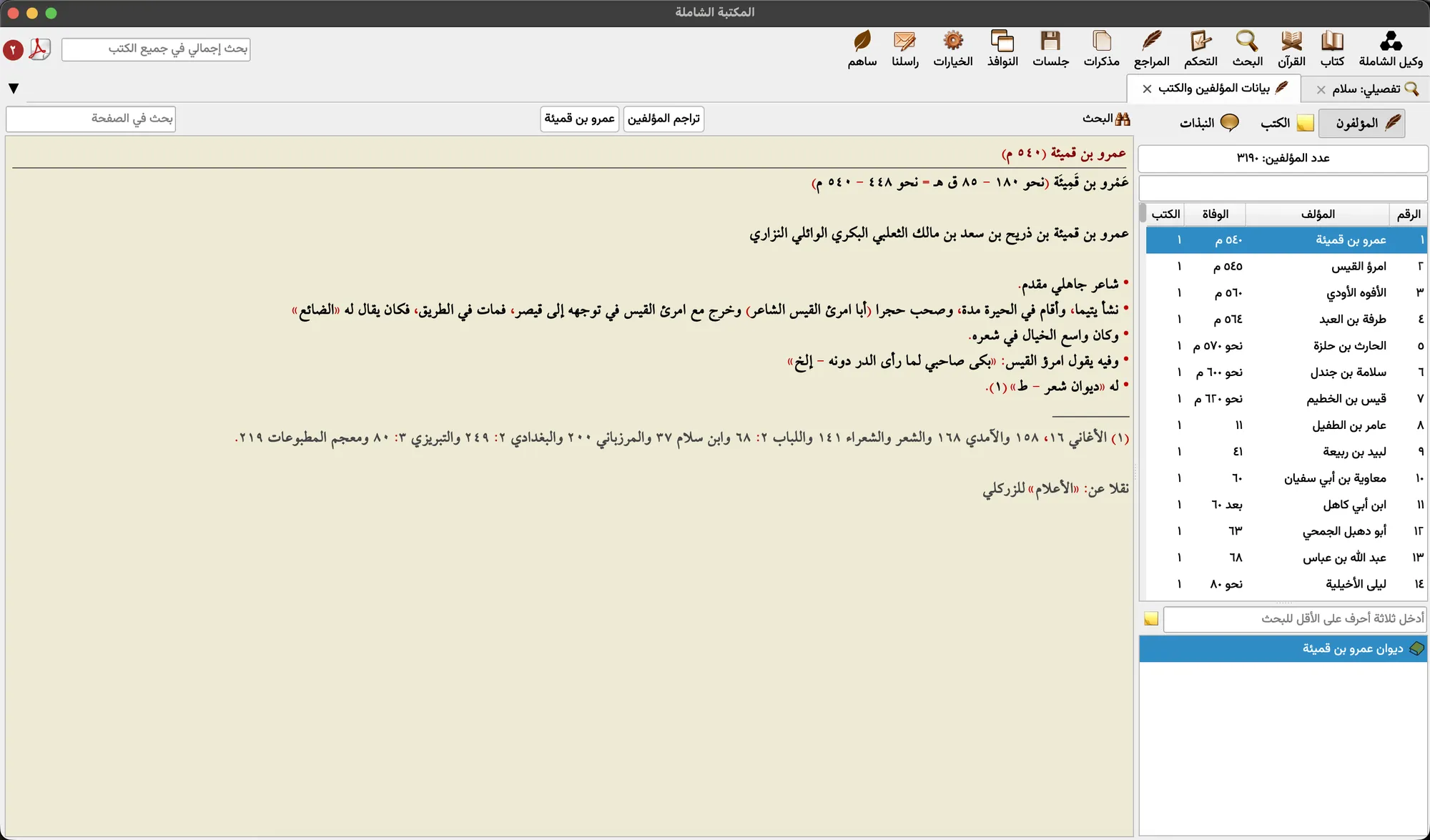
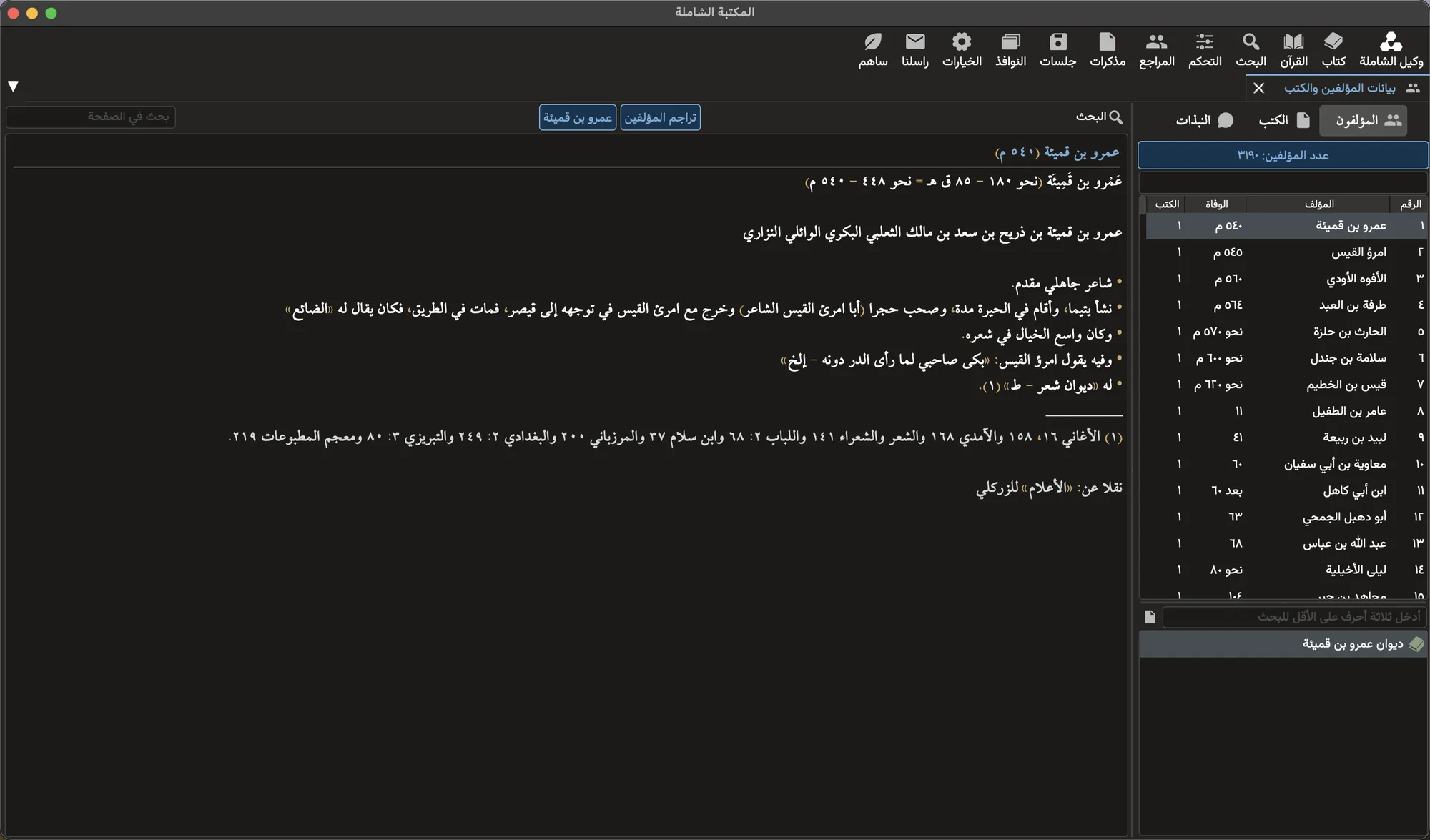
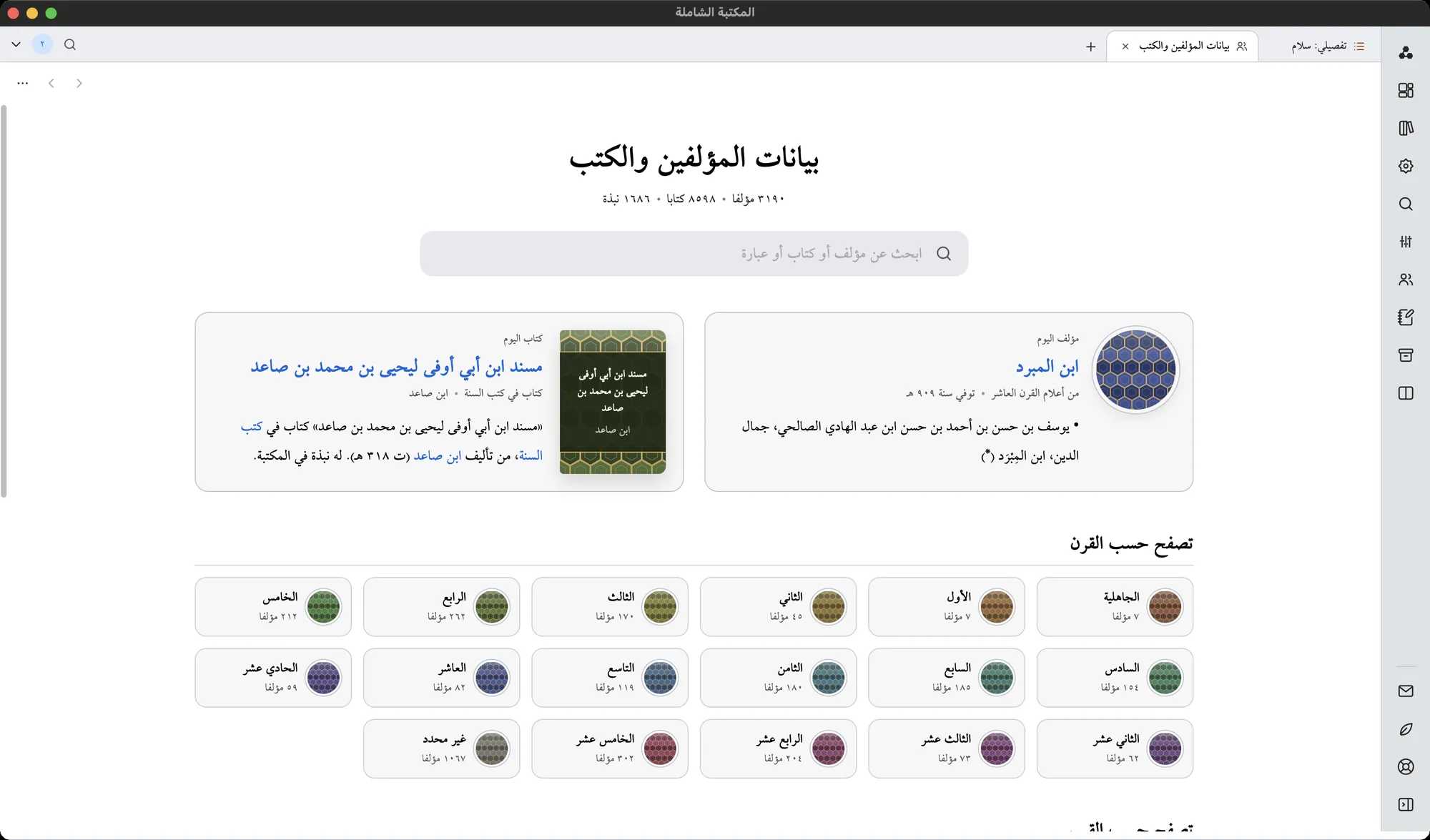
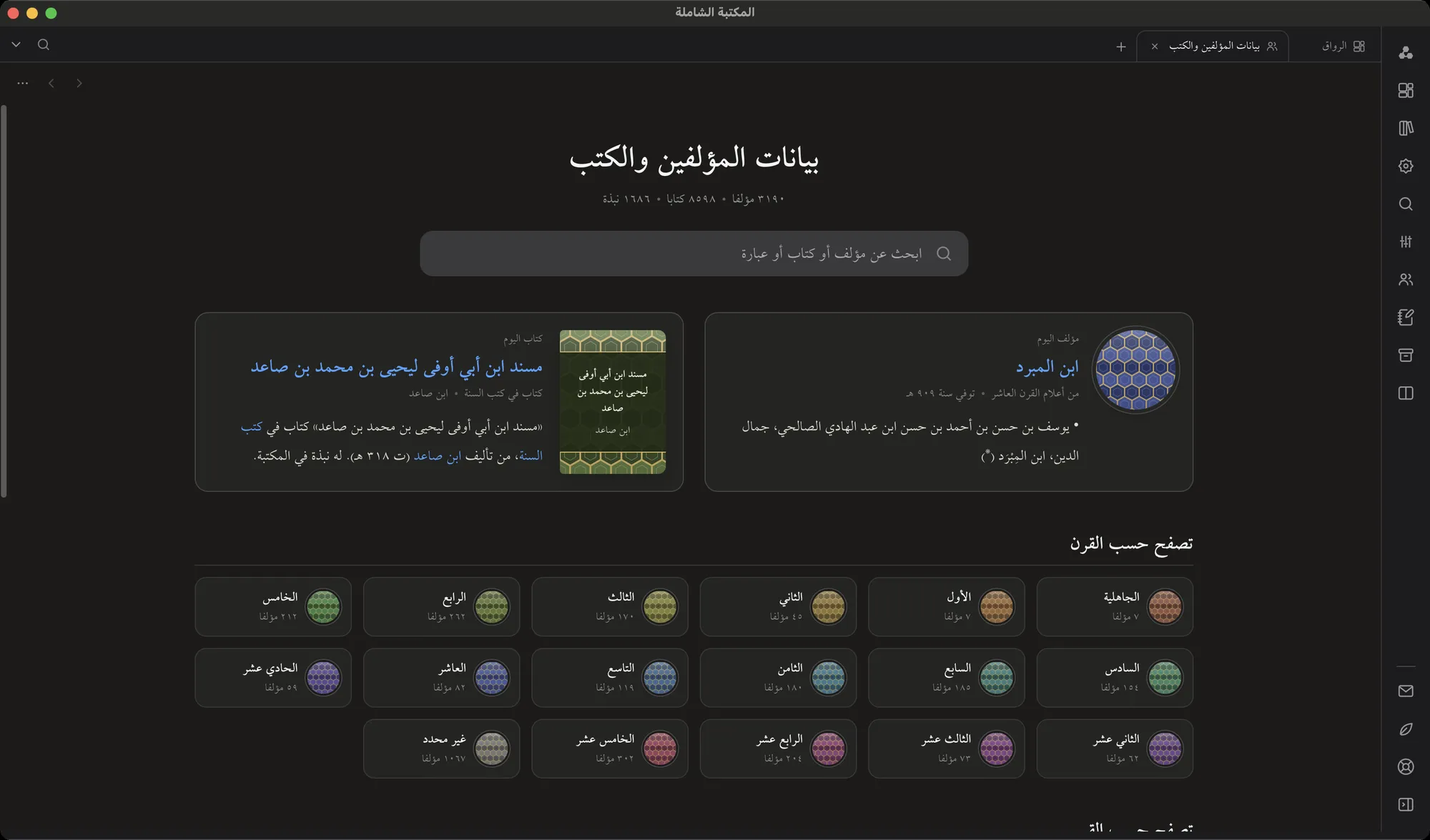
Every author, book, century and section in one encyclopedia layout.
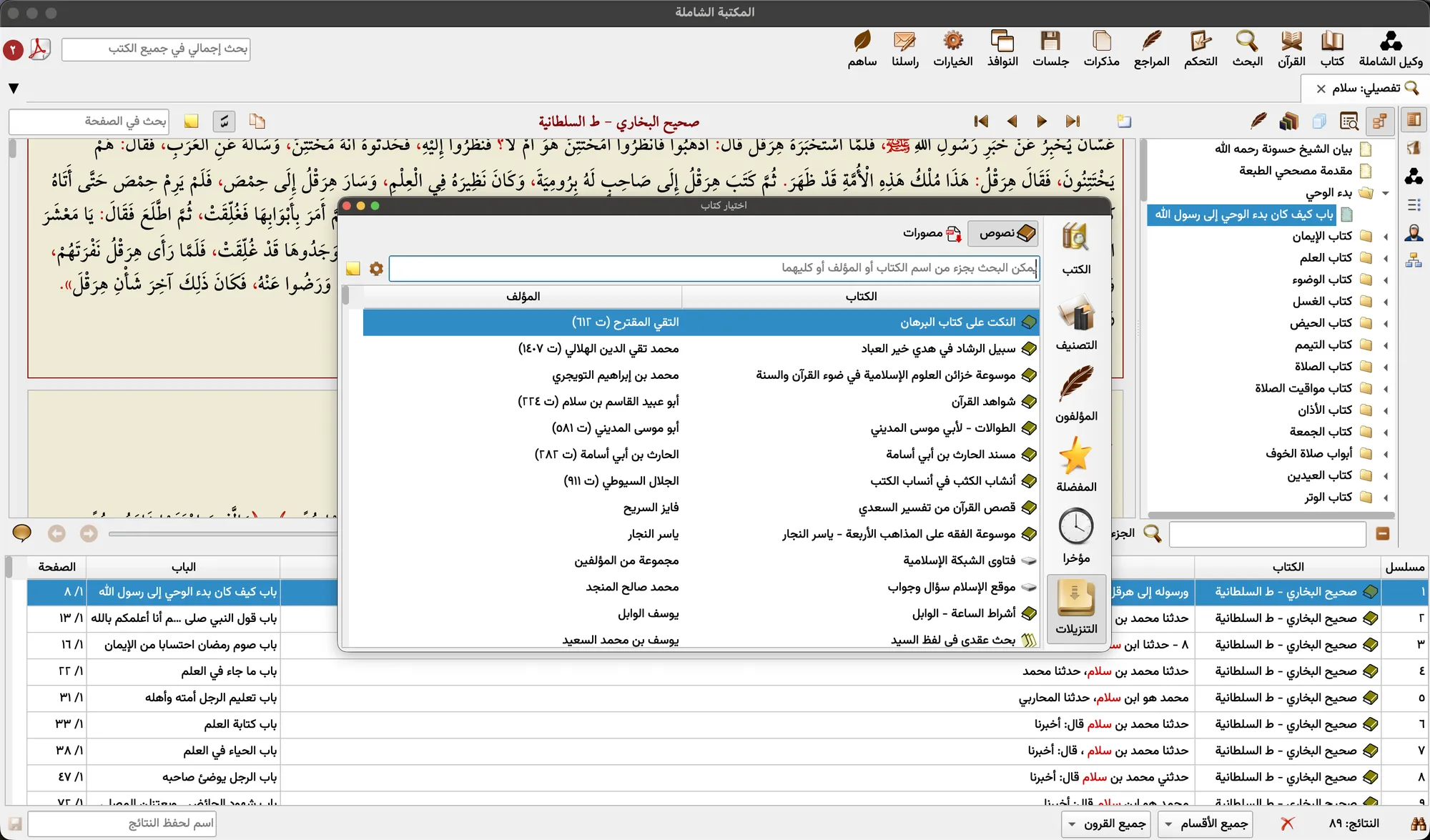
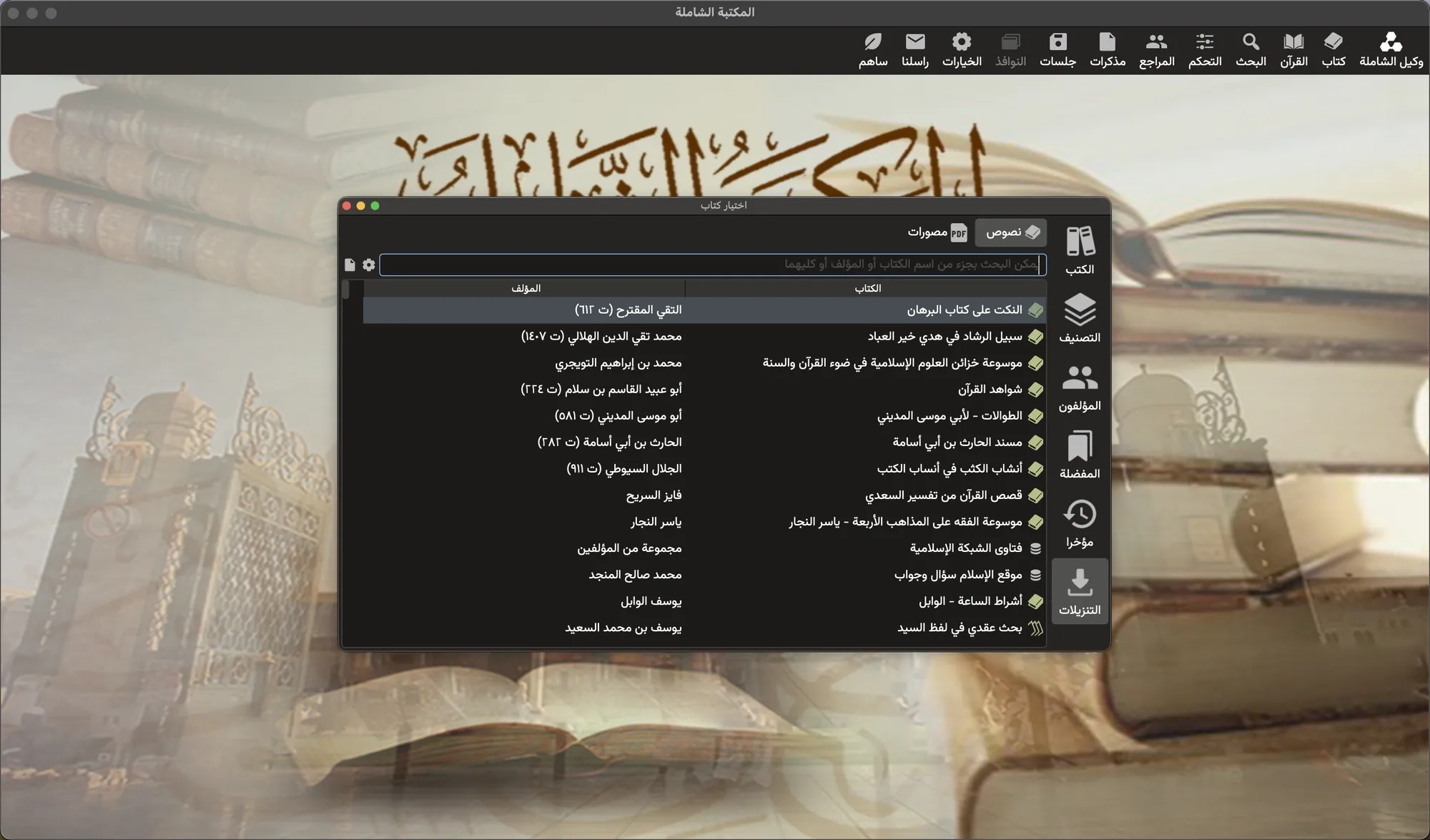
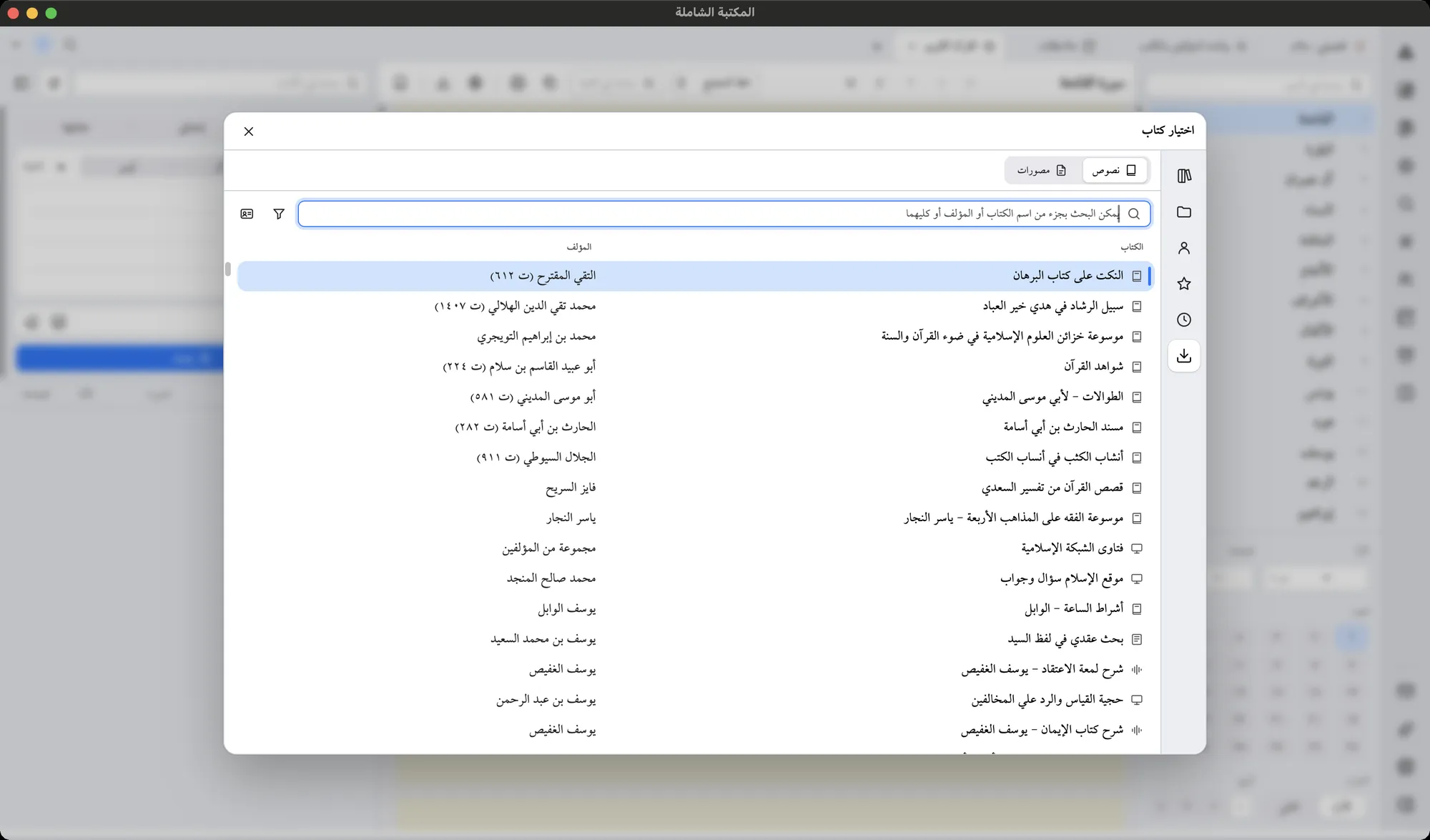
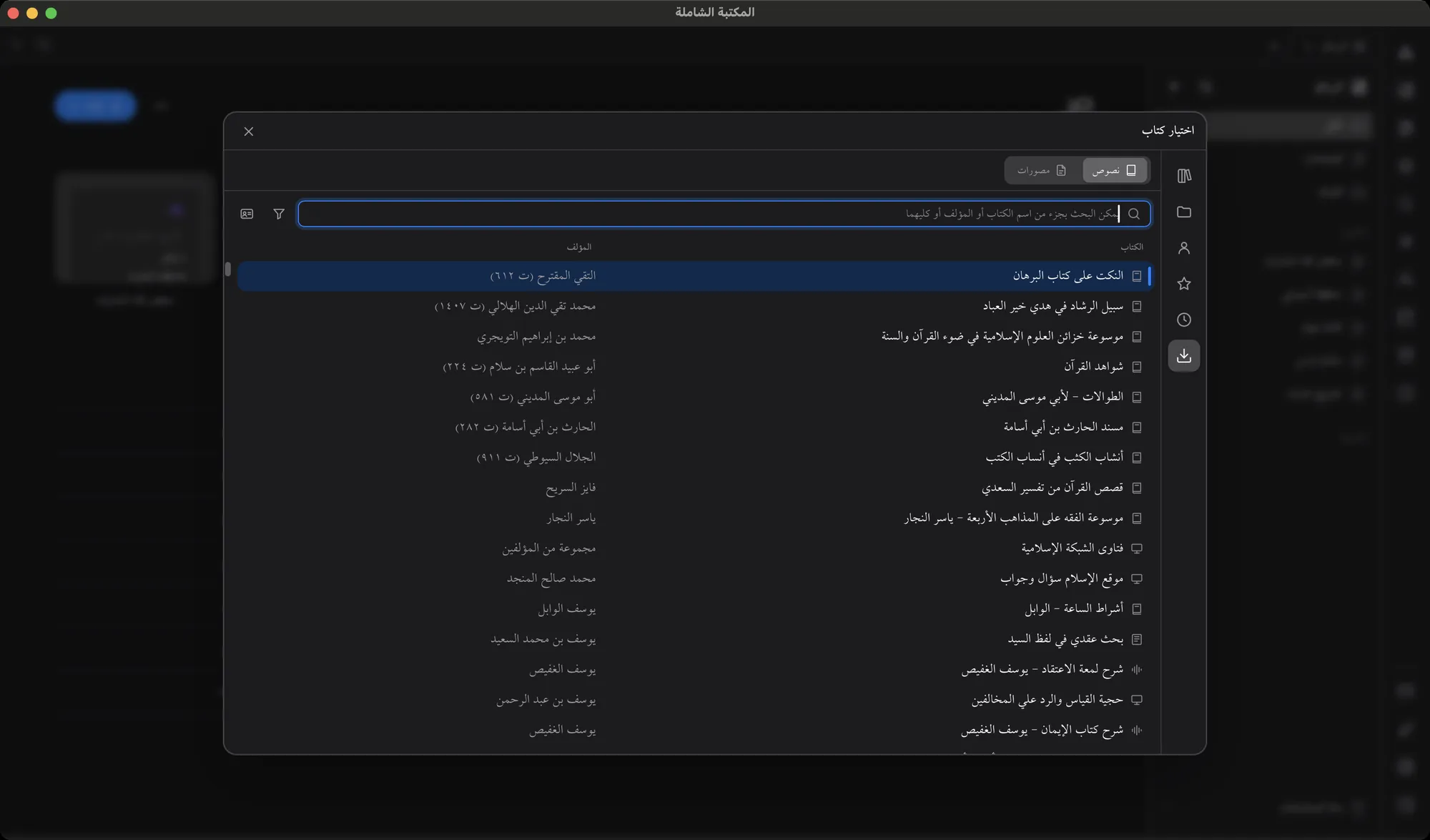
Texts and scanned copies to download, each on its own tab.
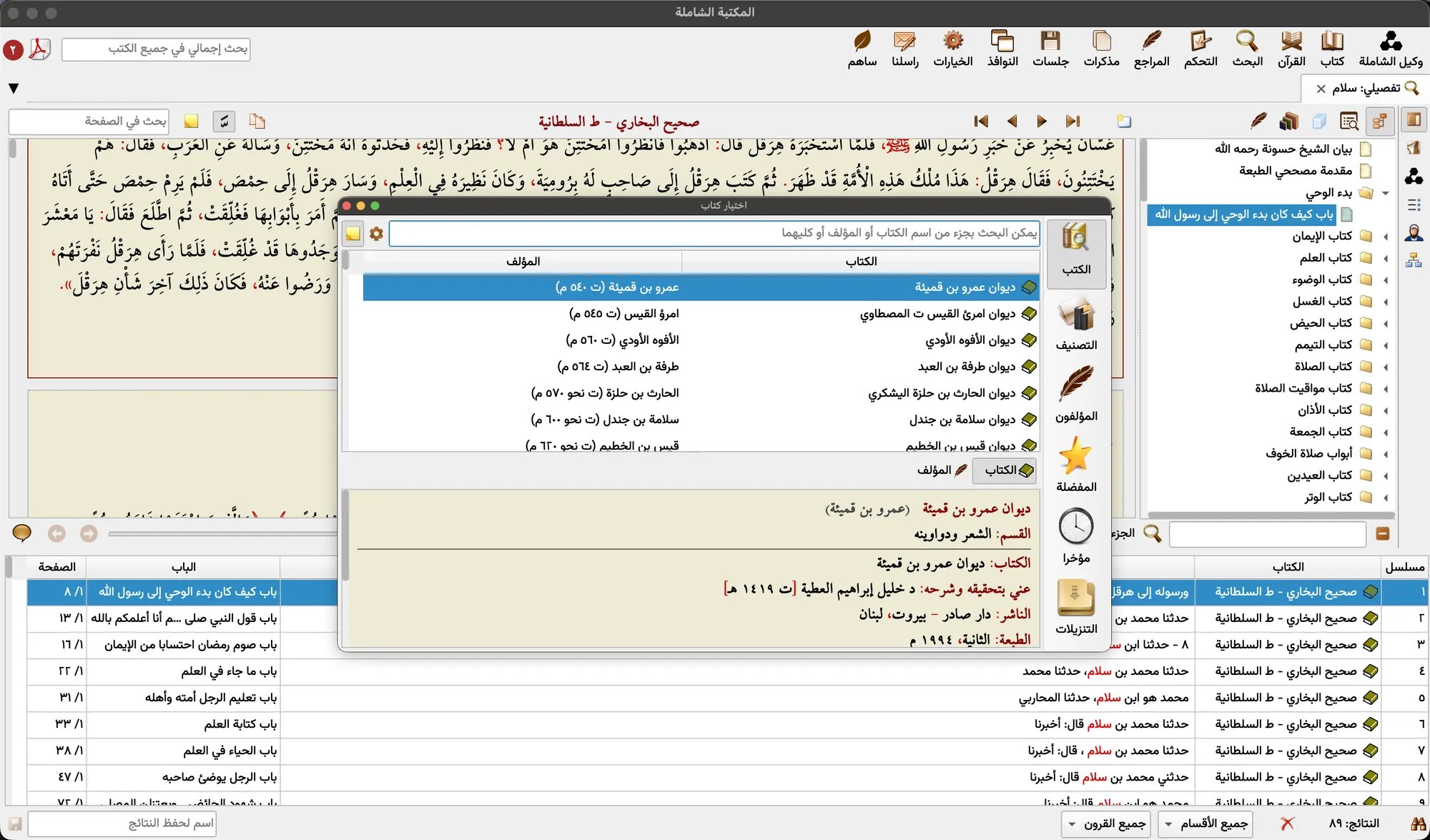
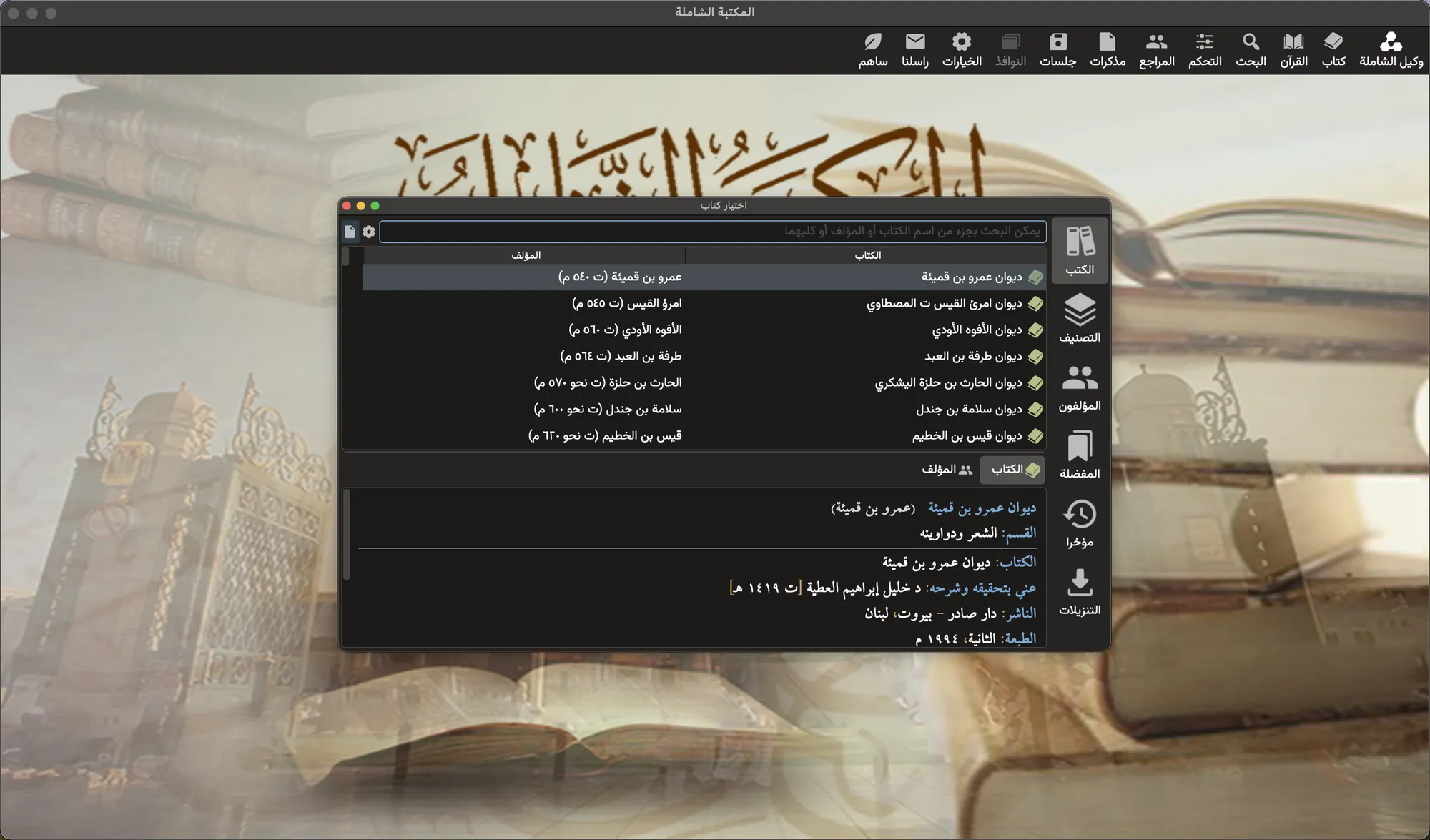
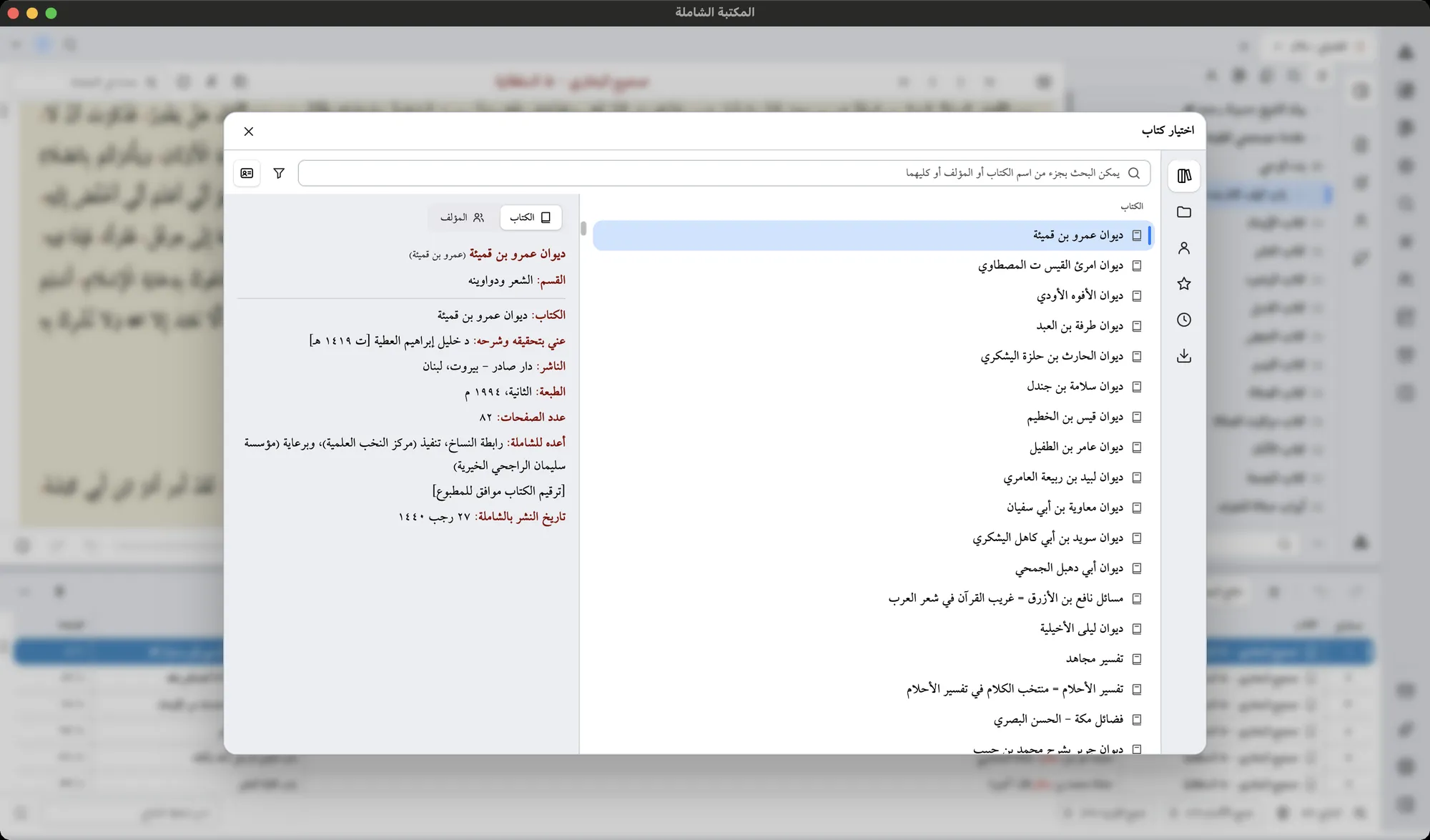
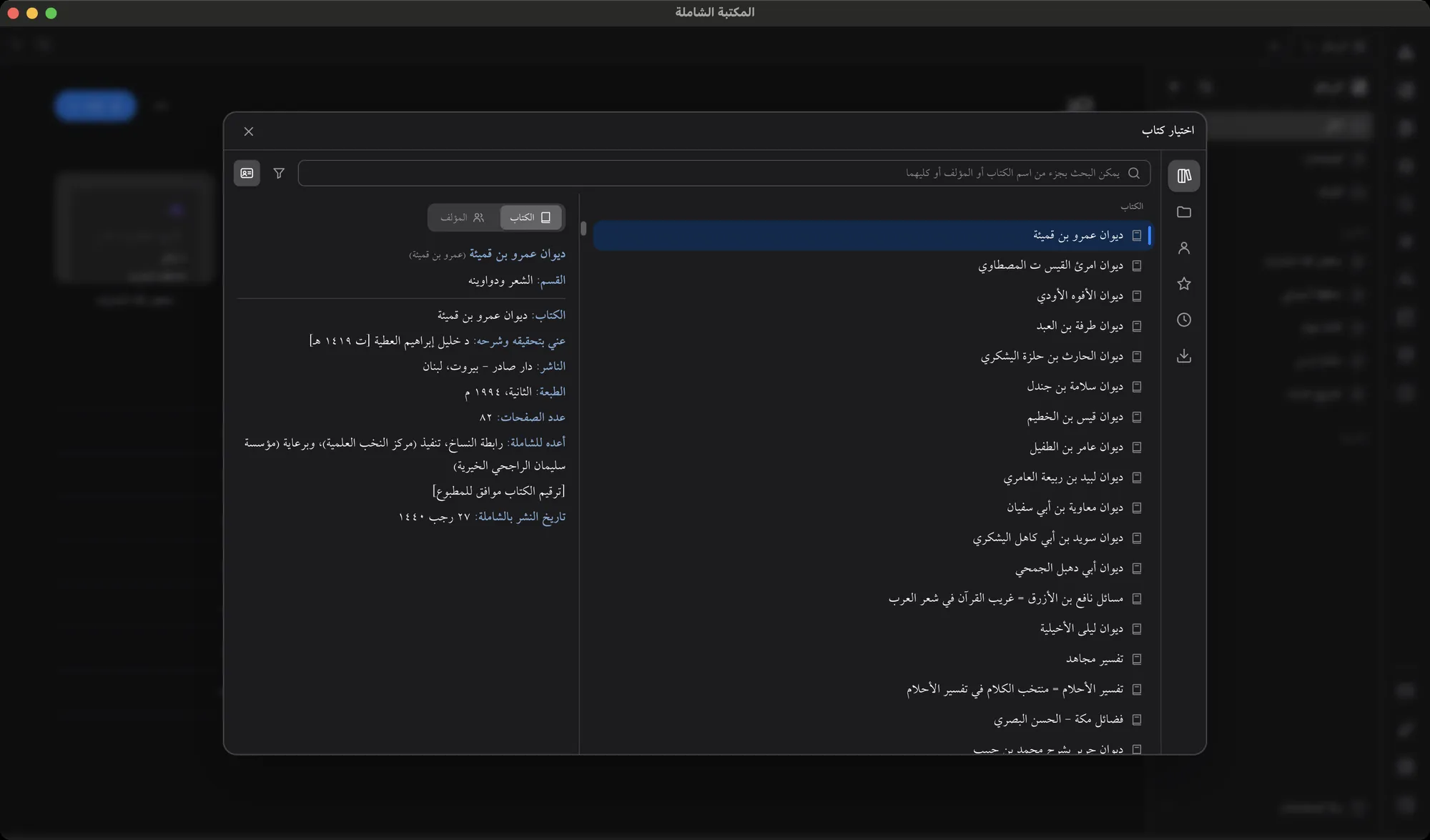
A book’s details slide out beside the list.
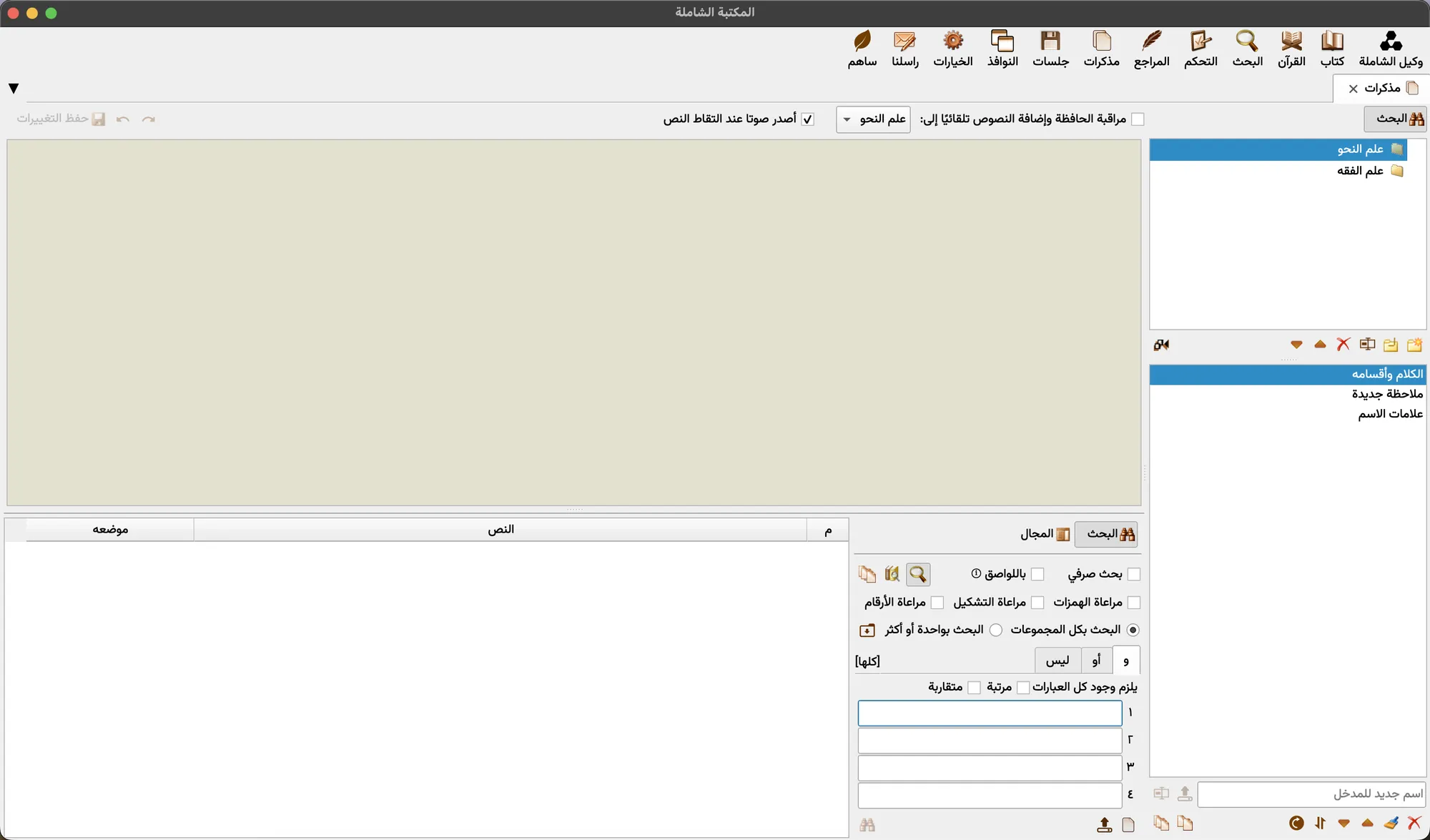
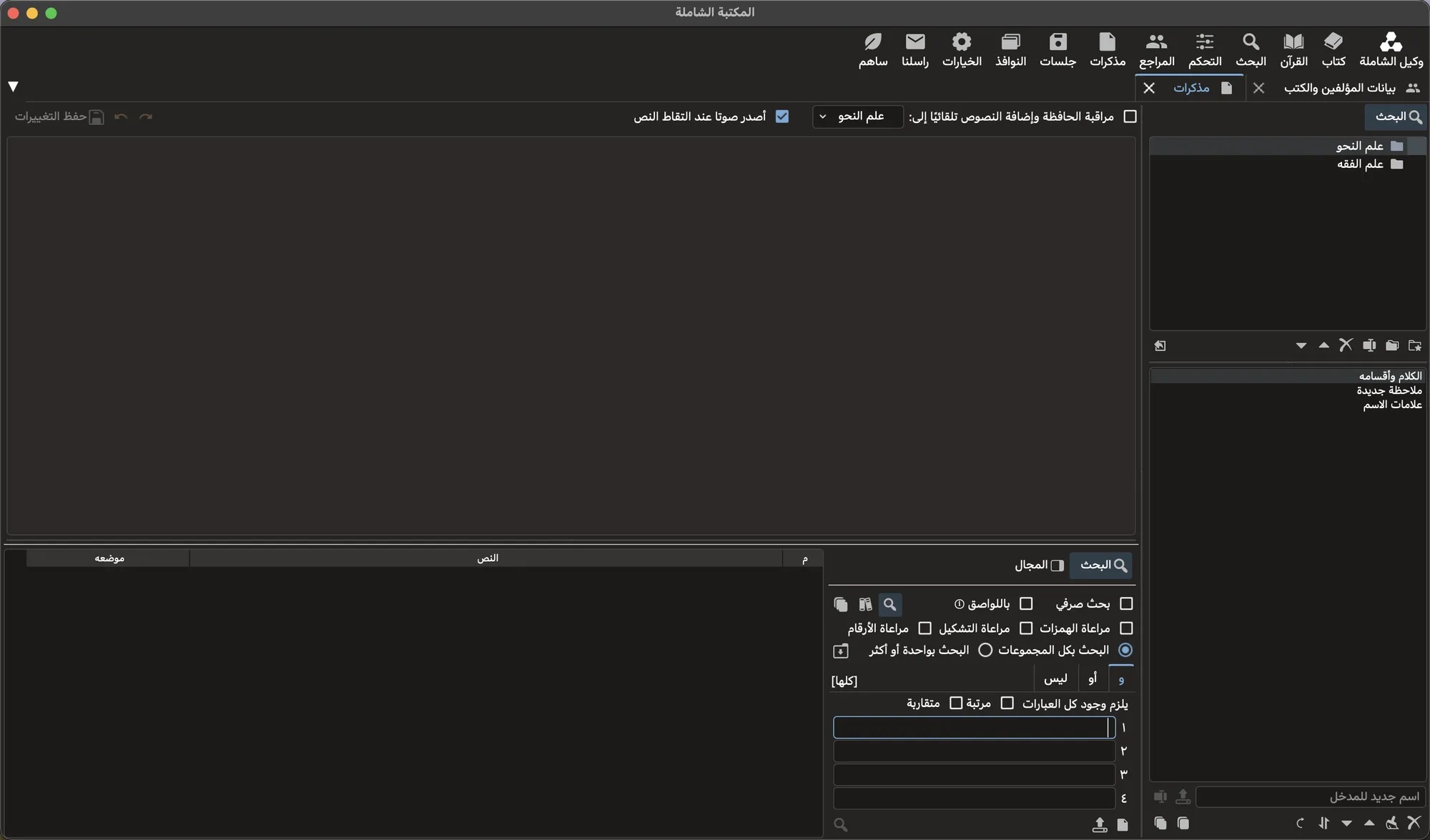
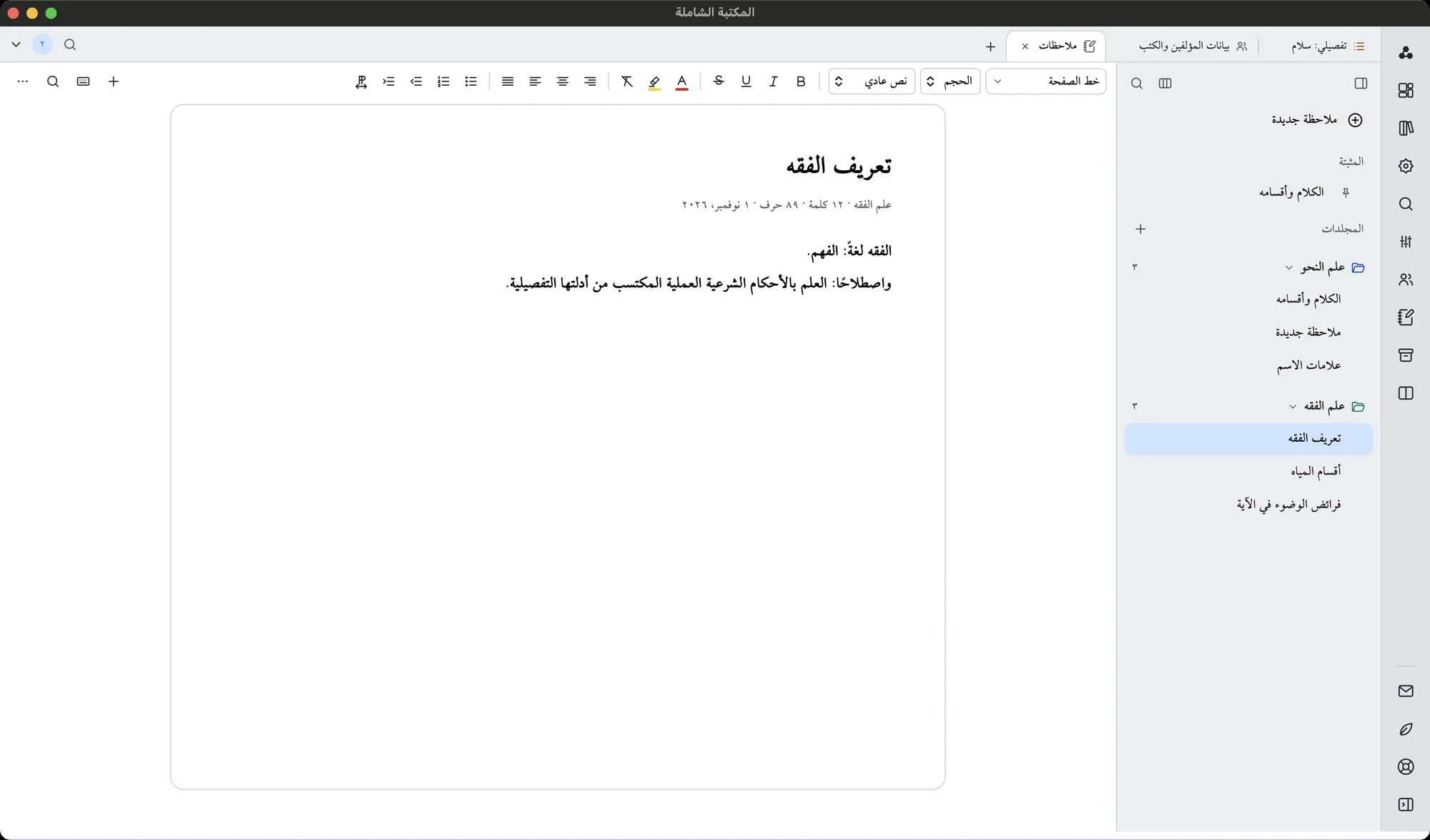
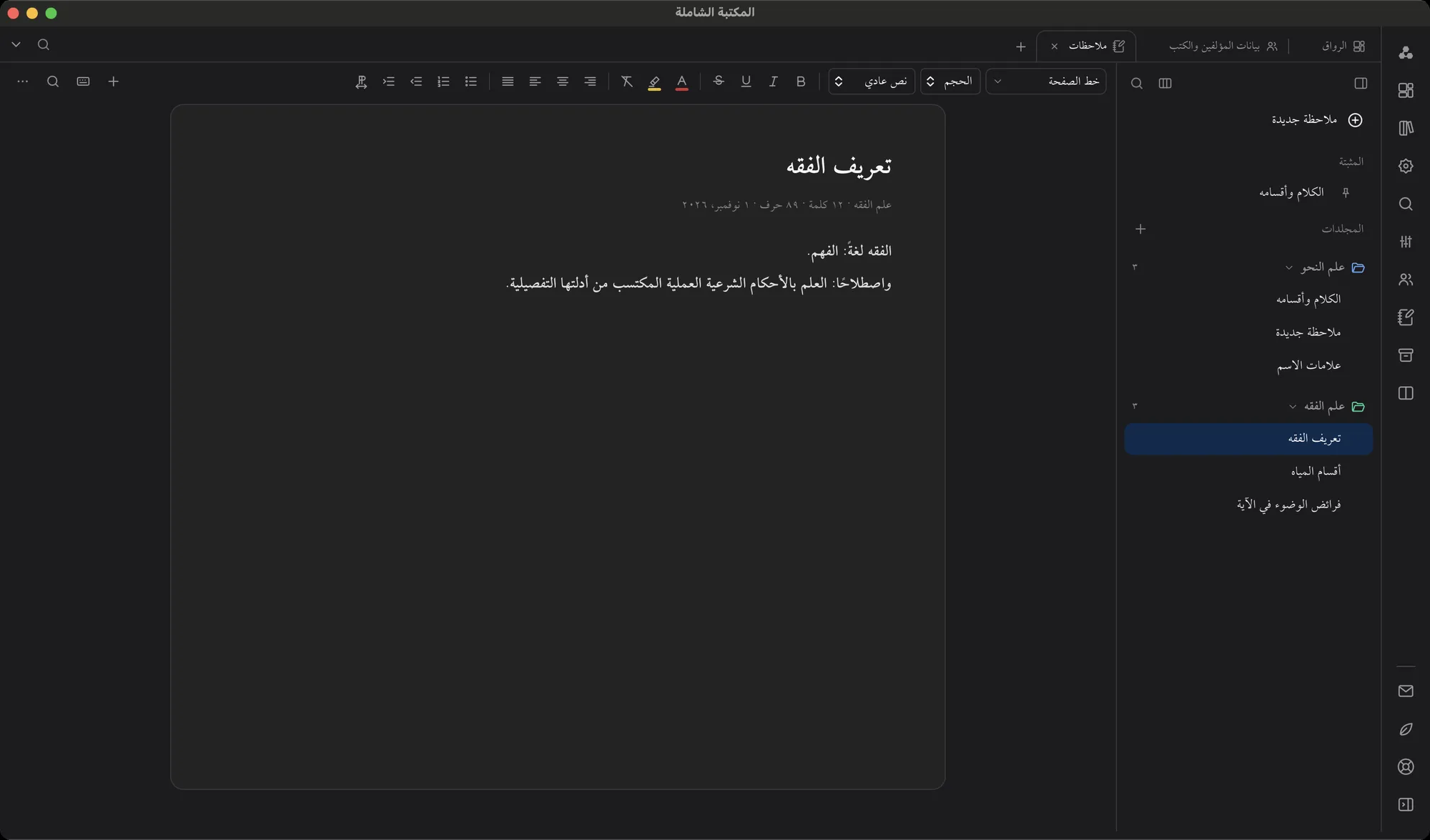
Folders and notes in one tree, with the note open beside it.
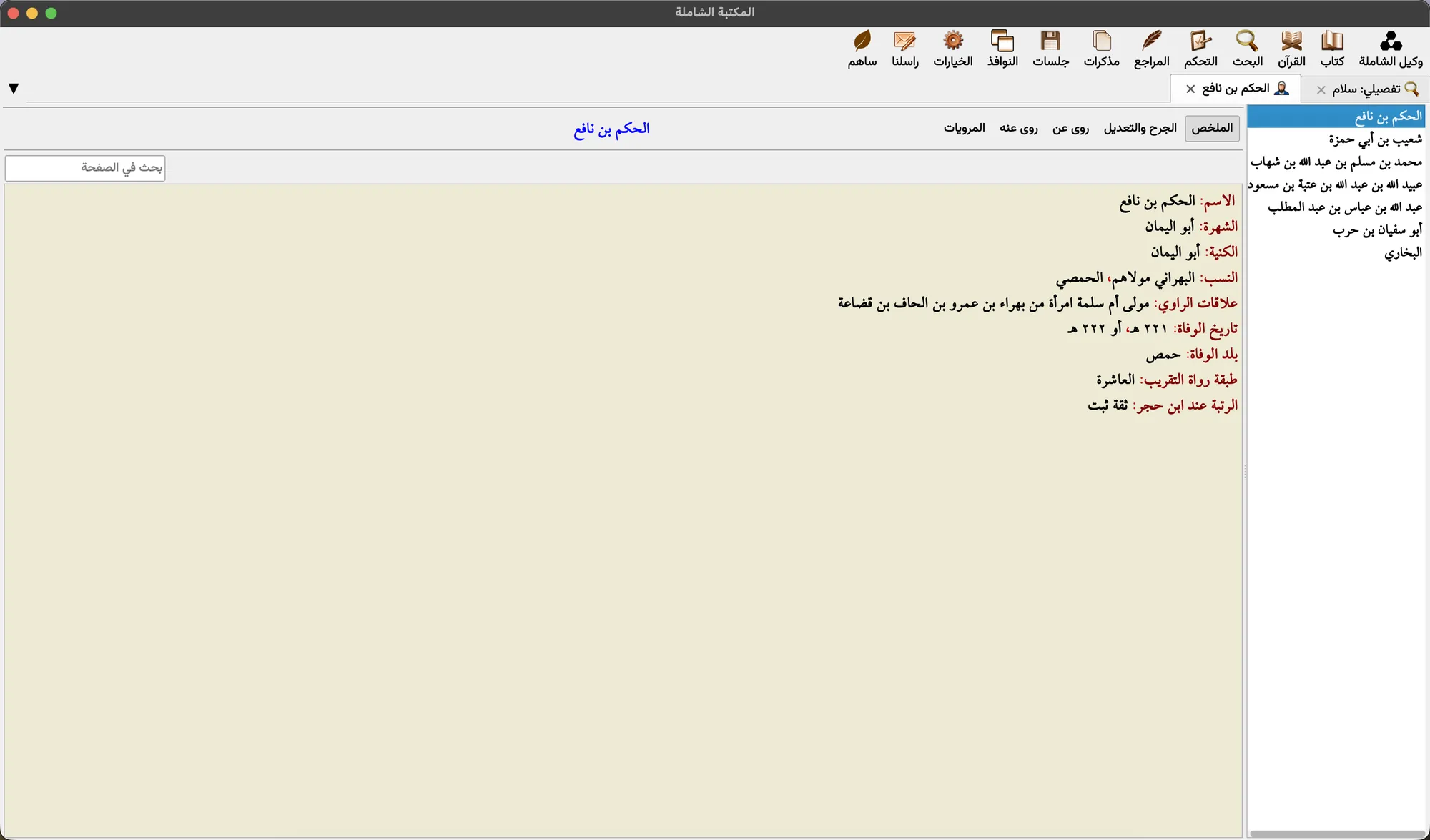
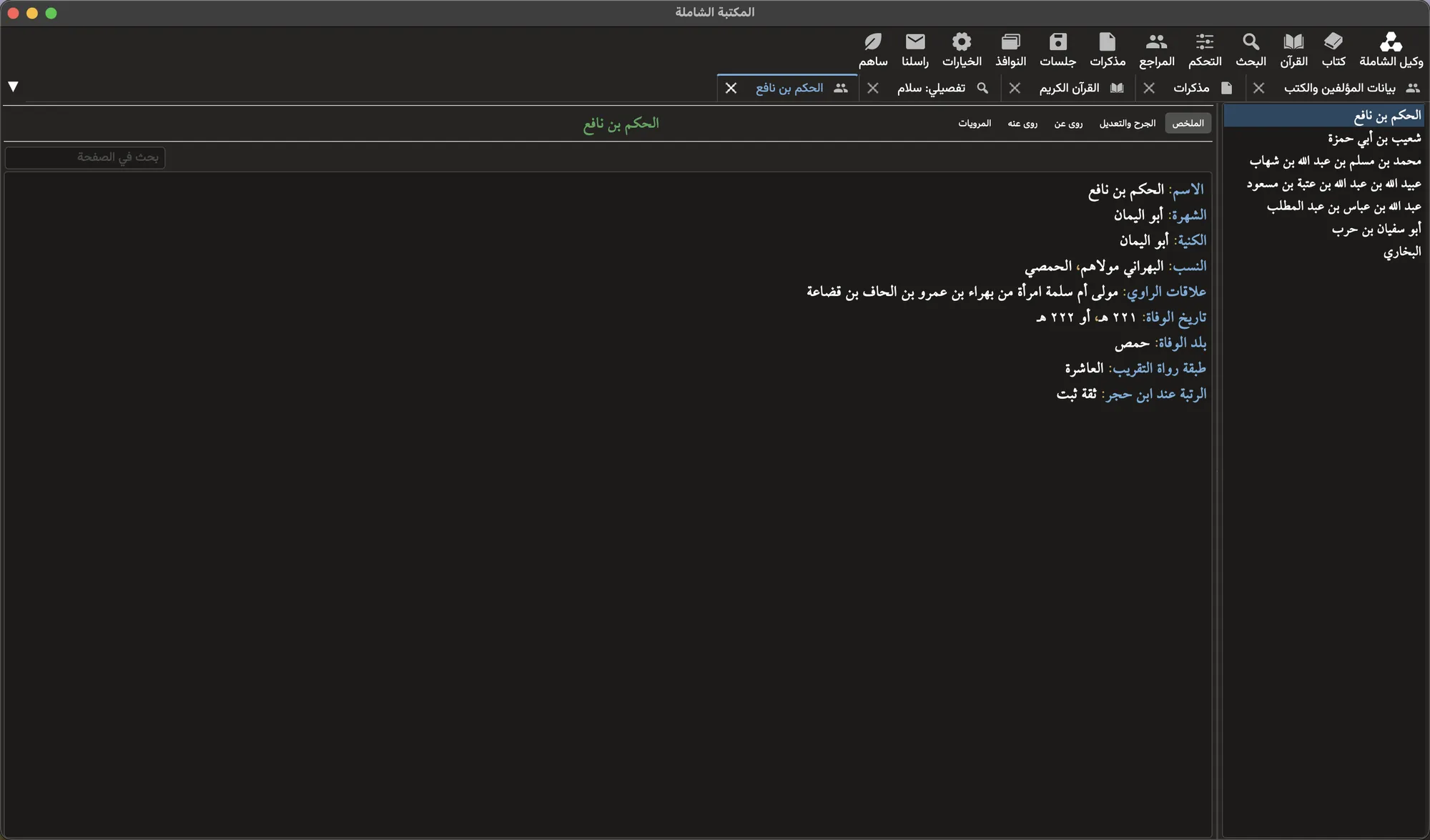
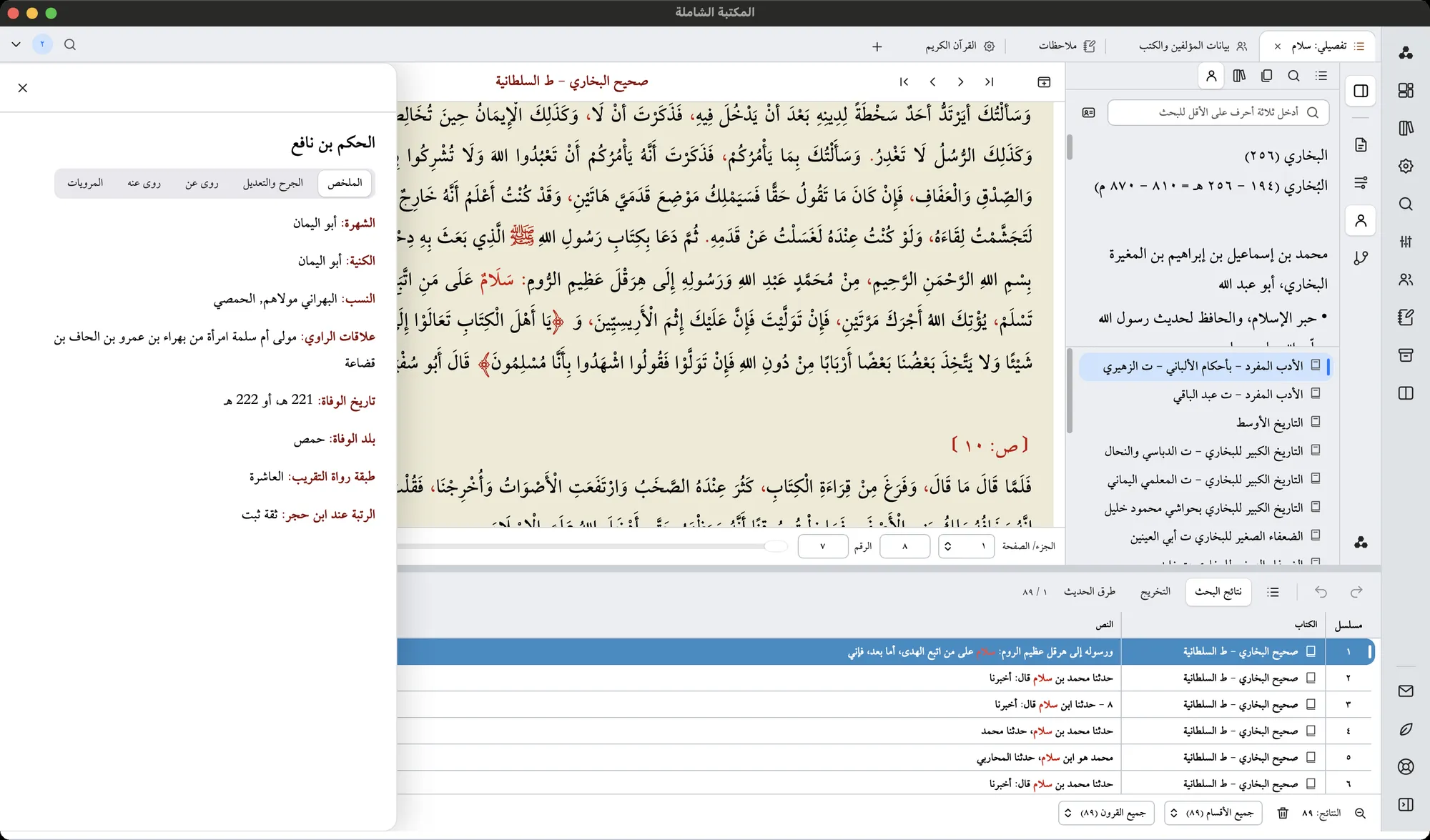
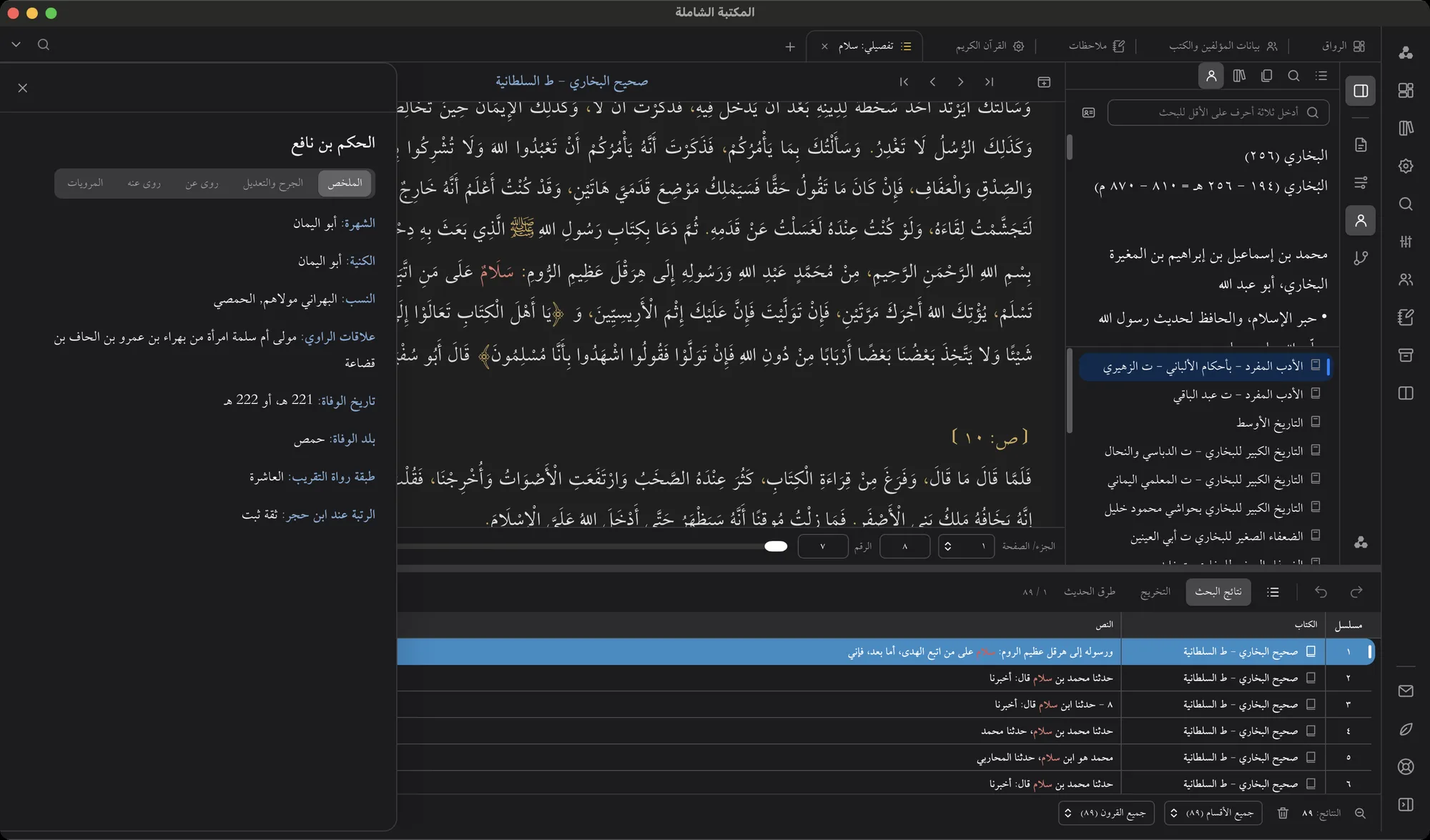
A narrator’s entry and narrations in a drawer over the book.
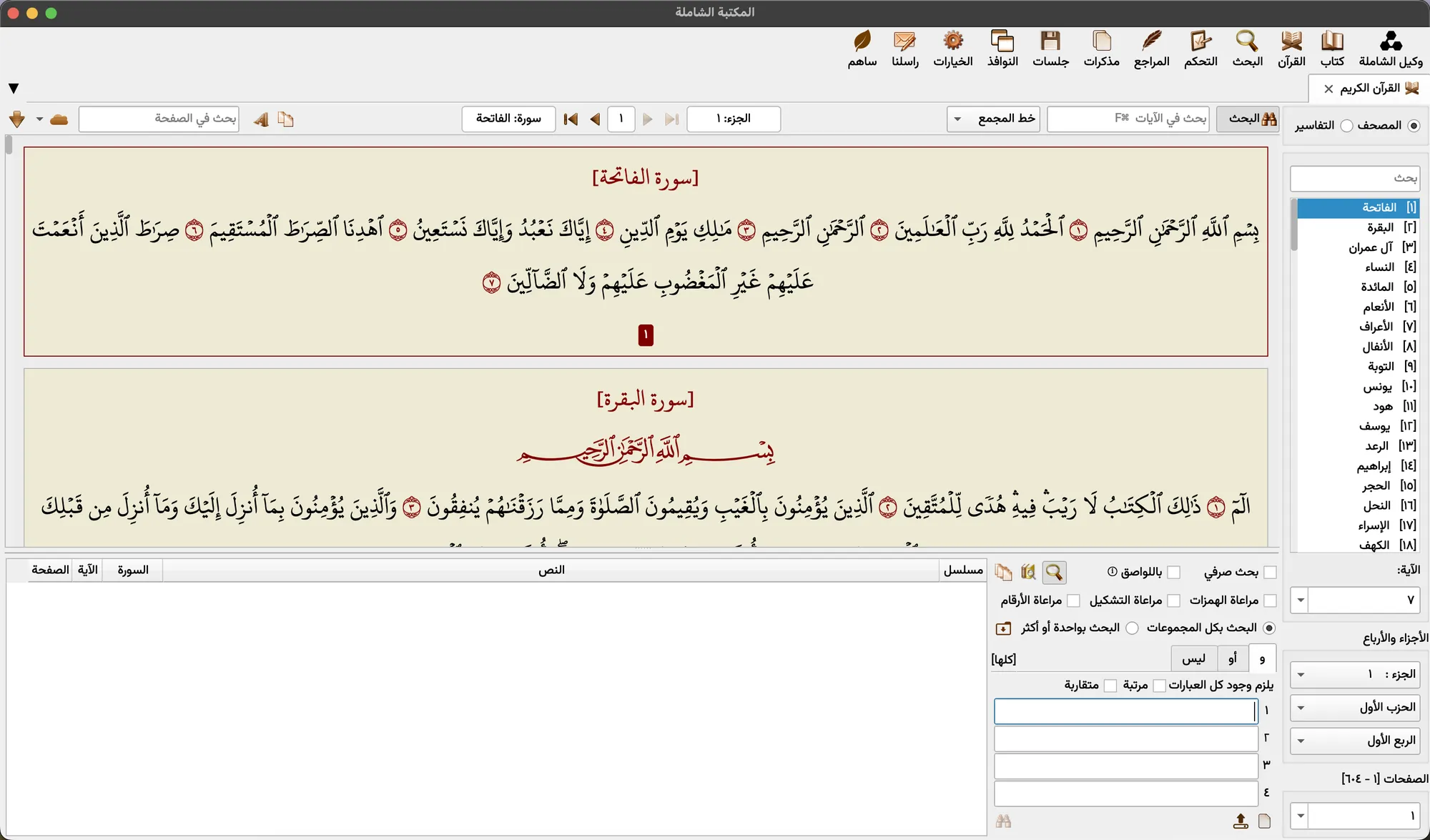
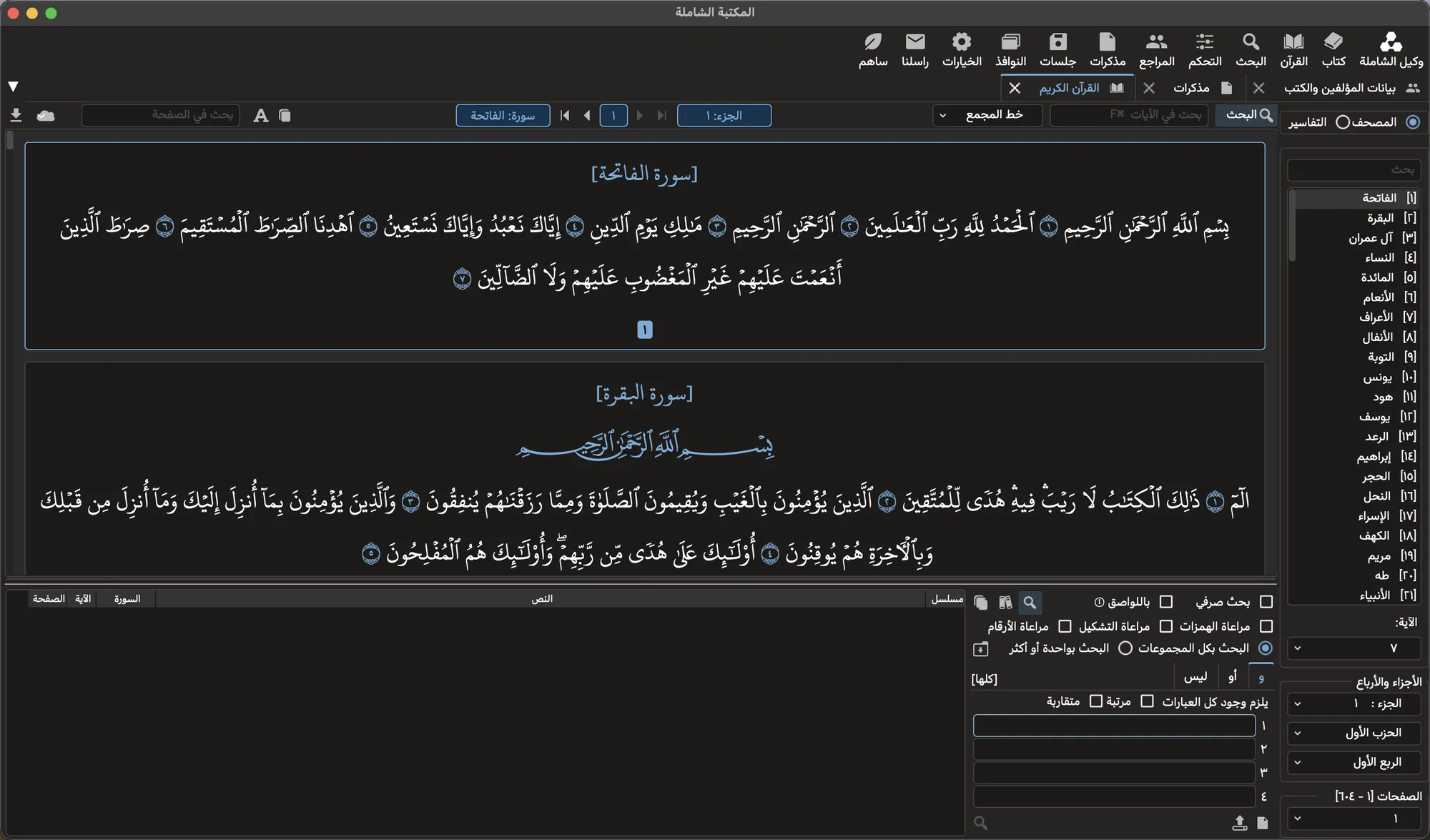
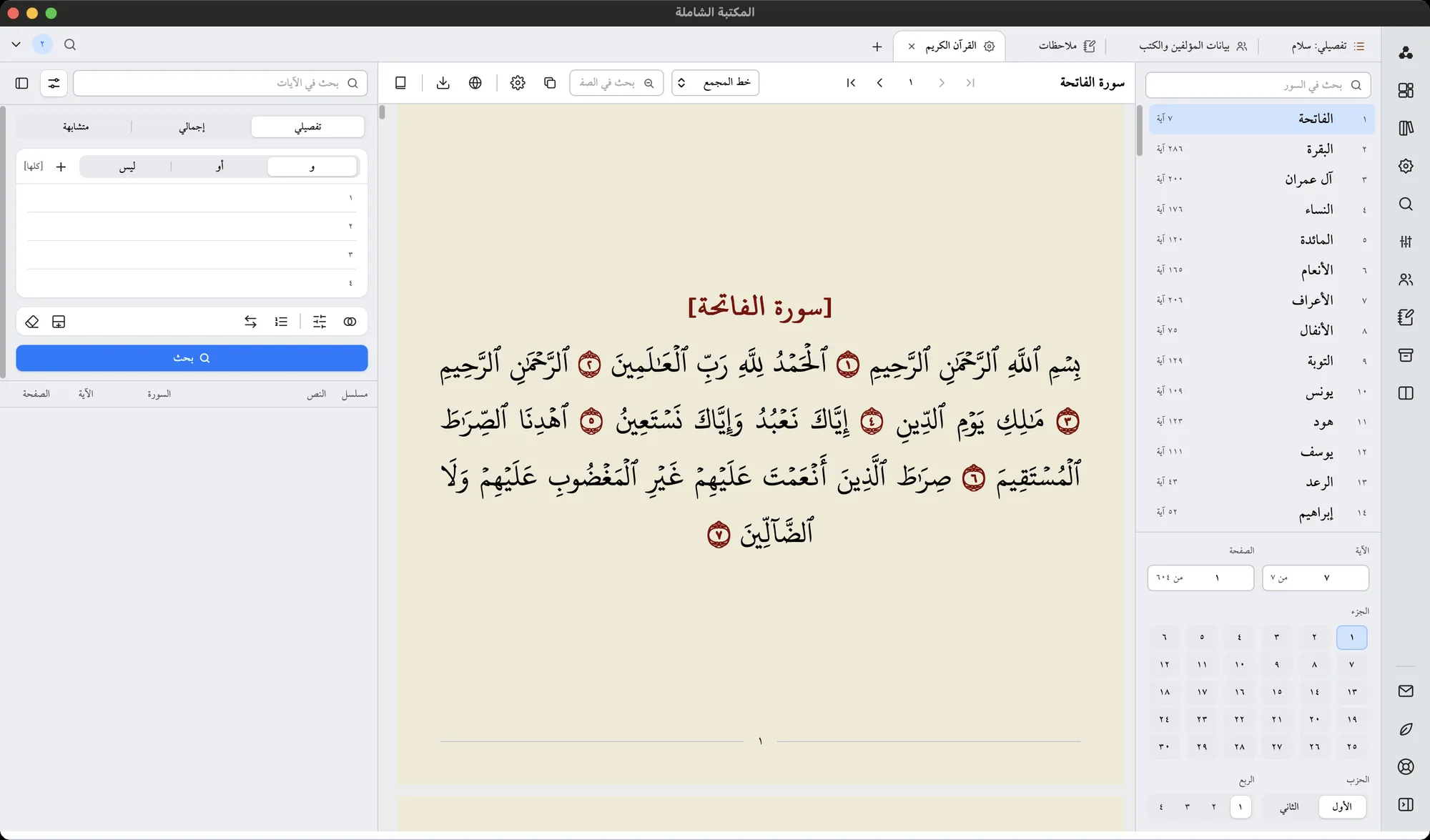
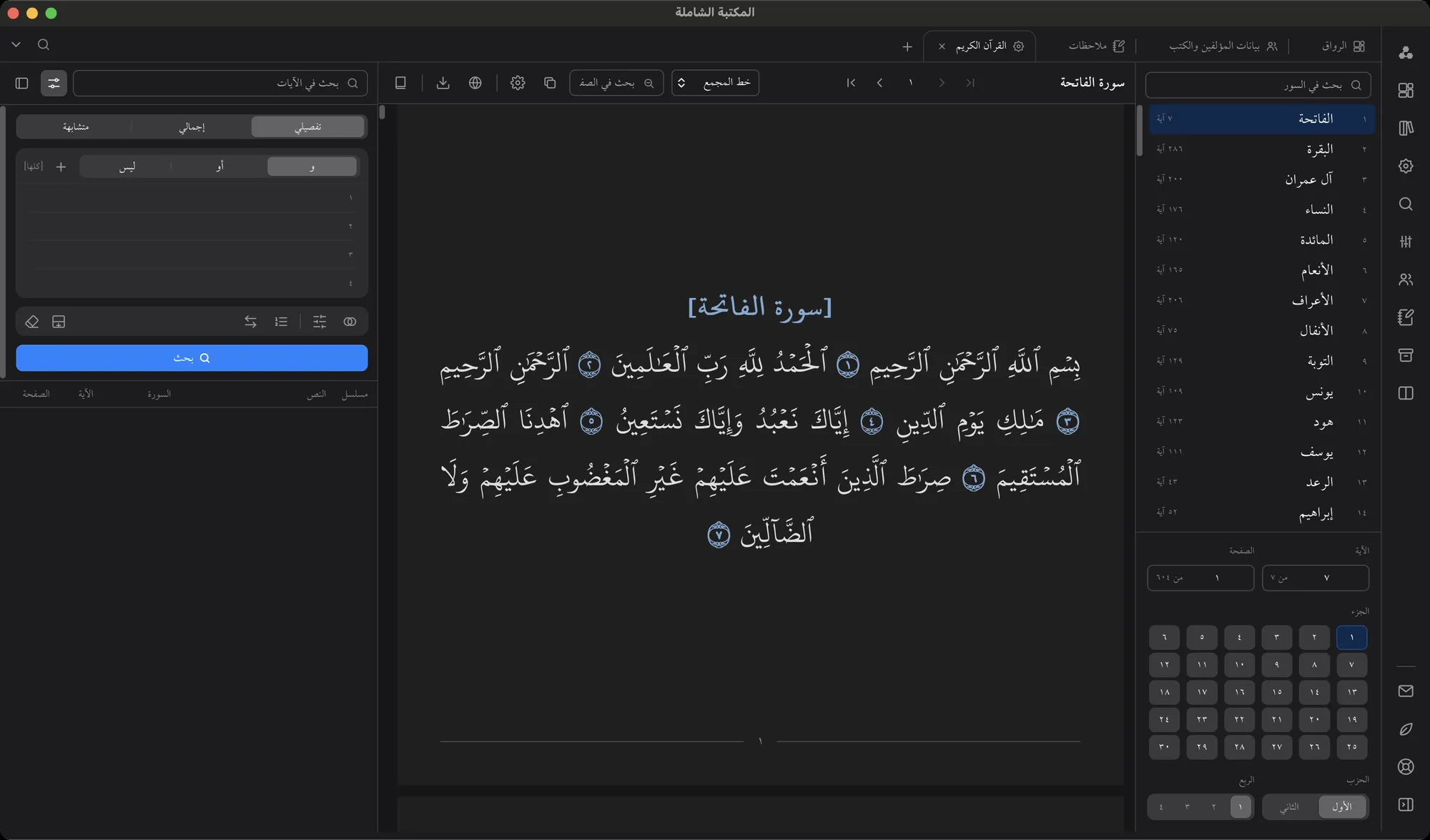
The mushaf with its own search, in the layout you pick.
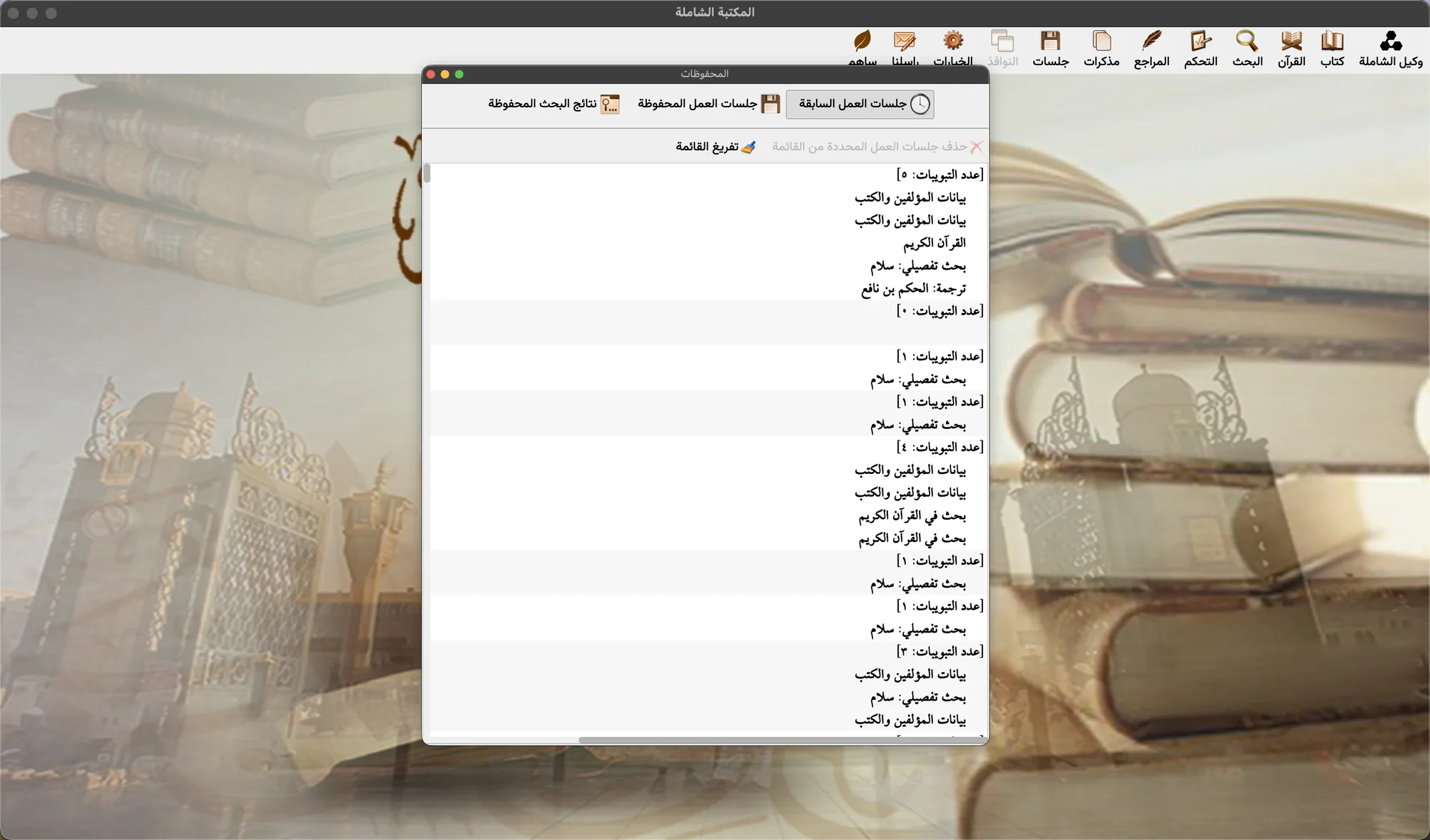
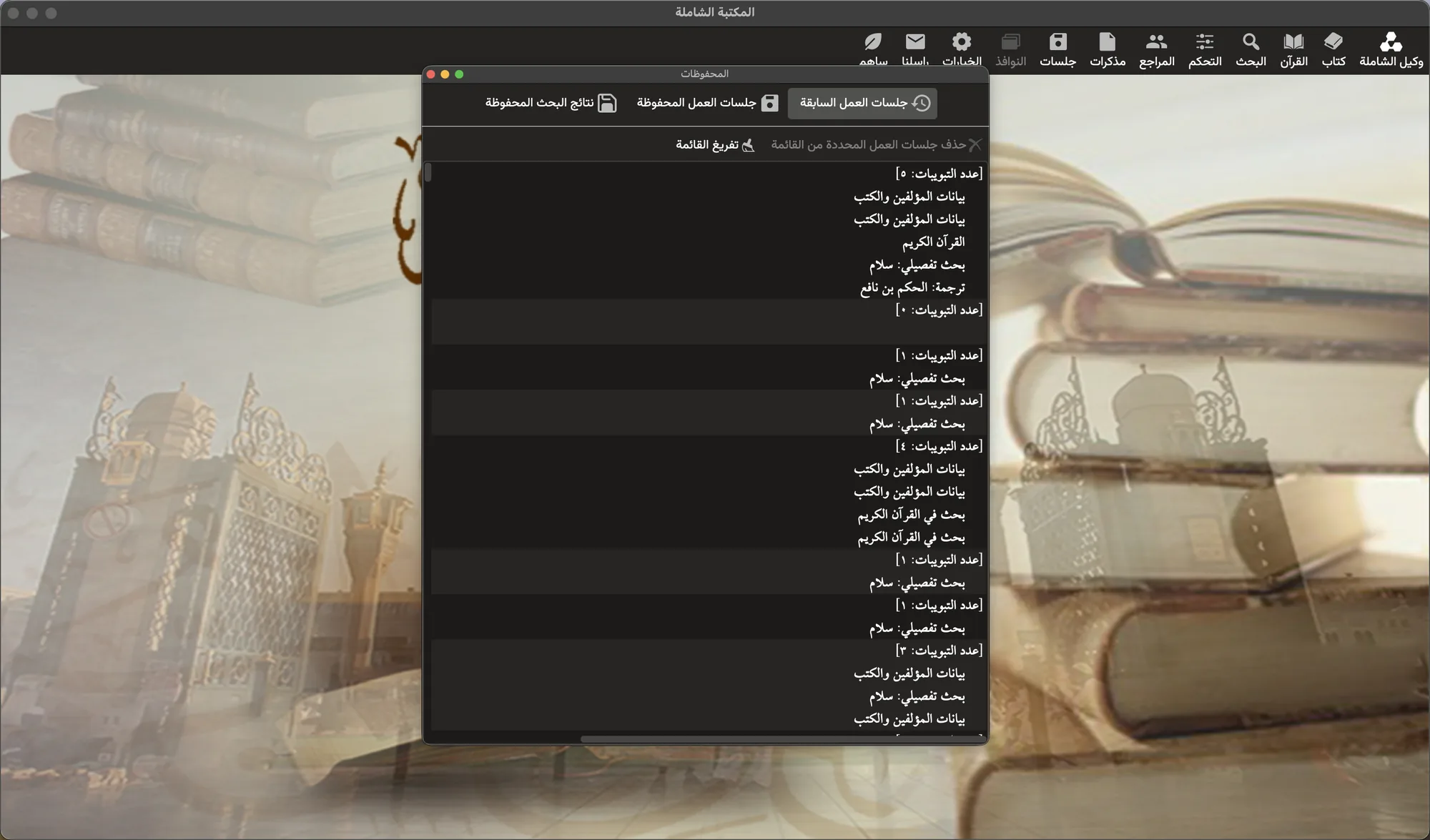
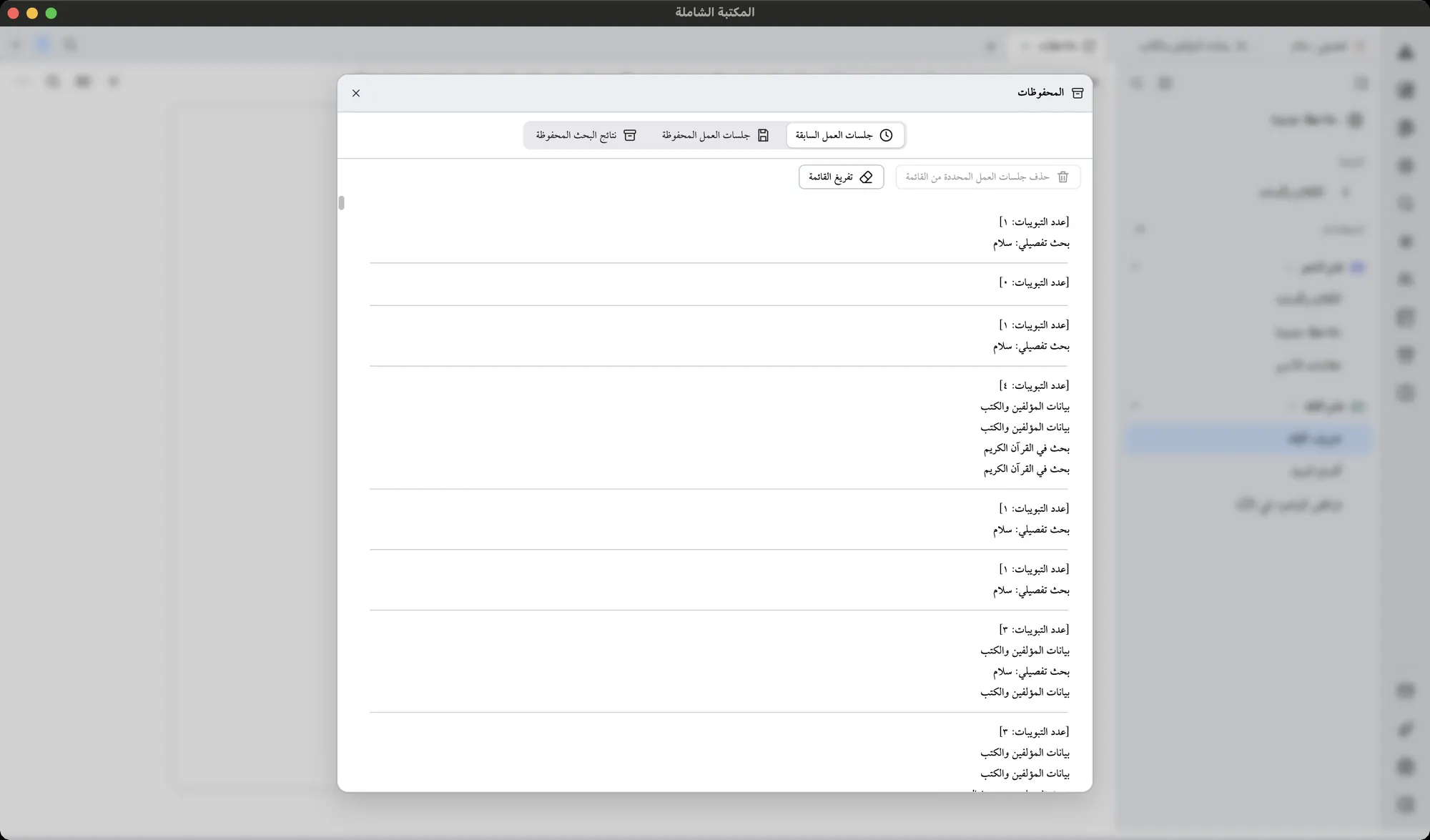
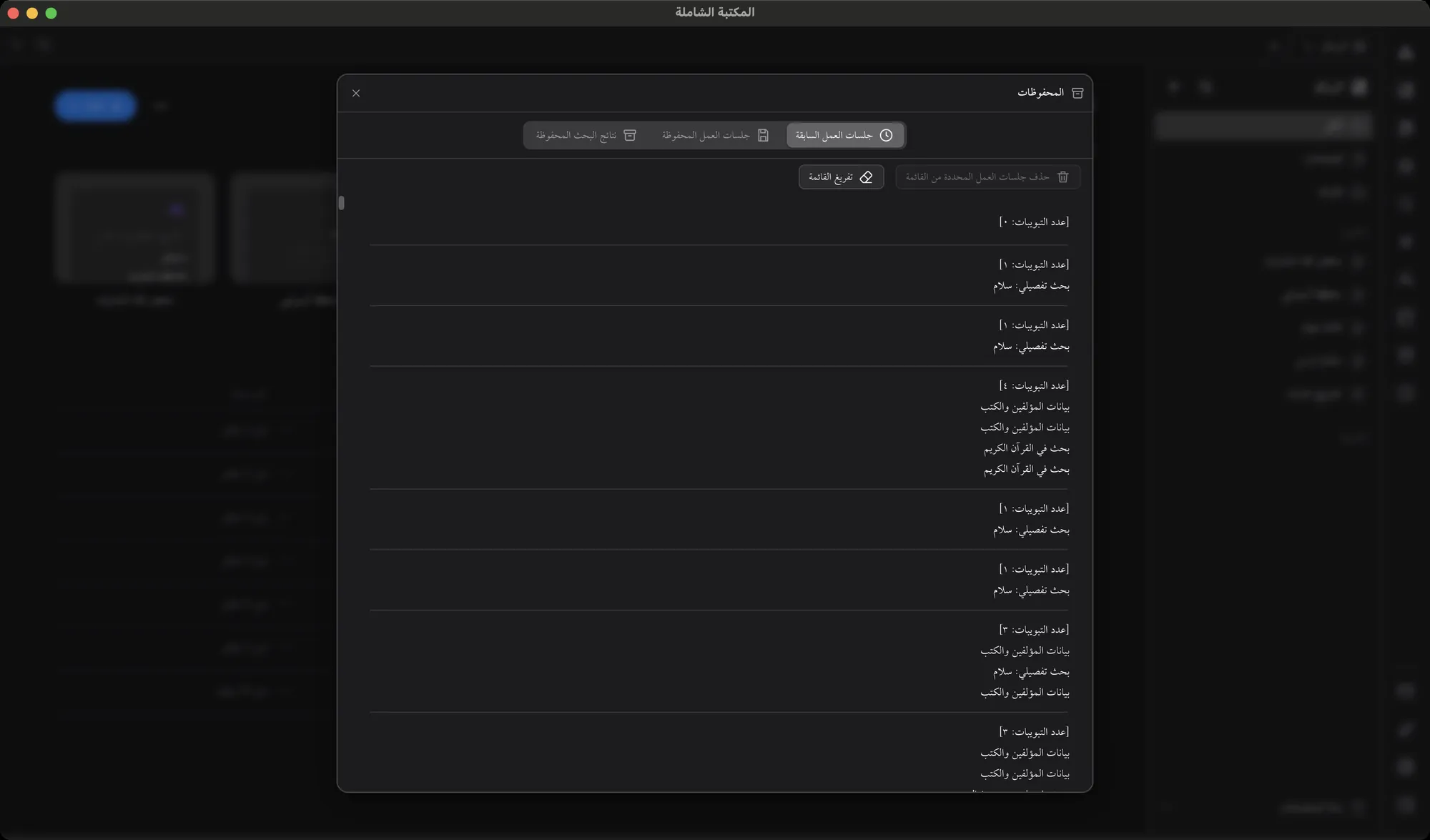
Saved work sessions and search results, one tab each.
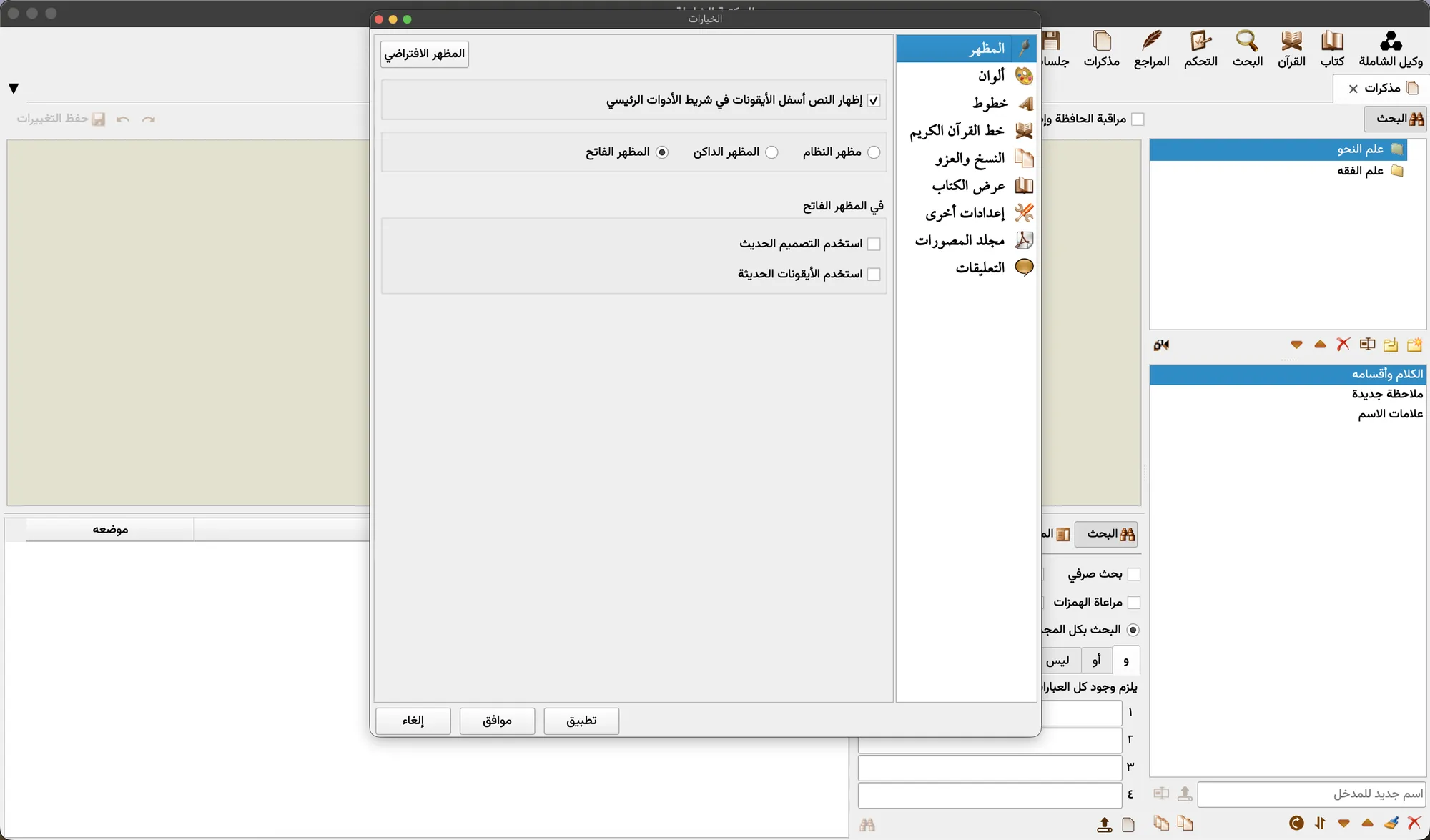
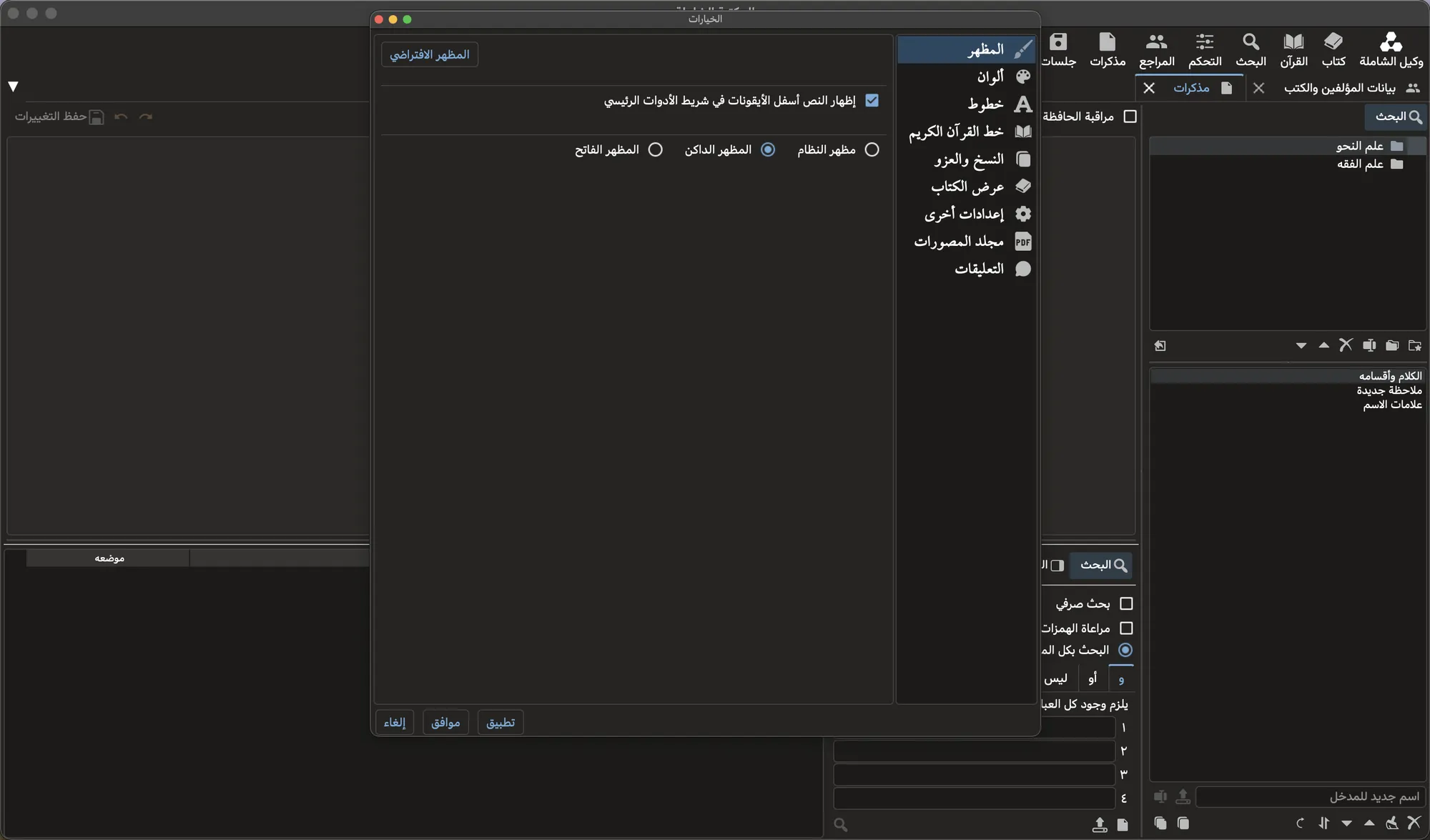
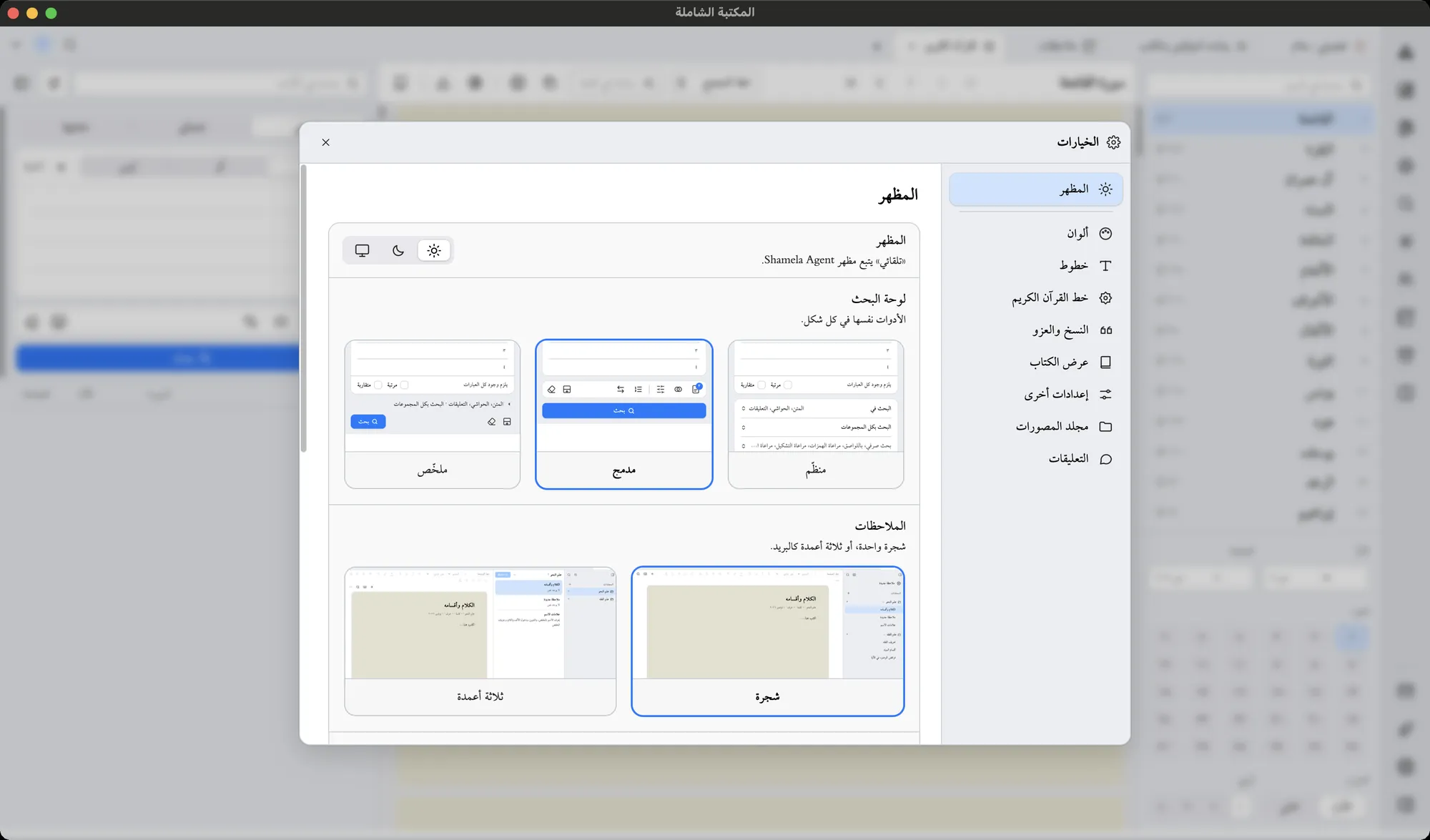
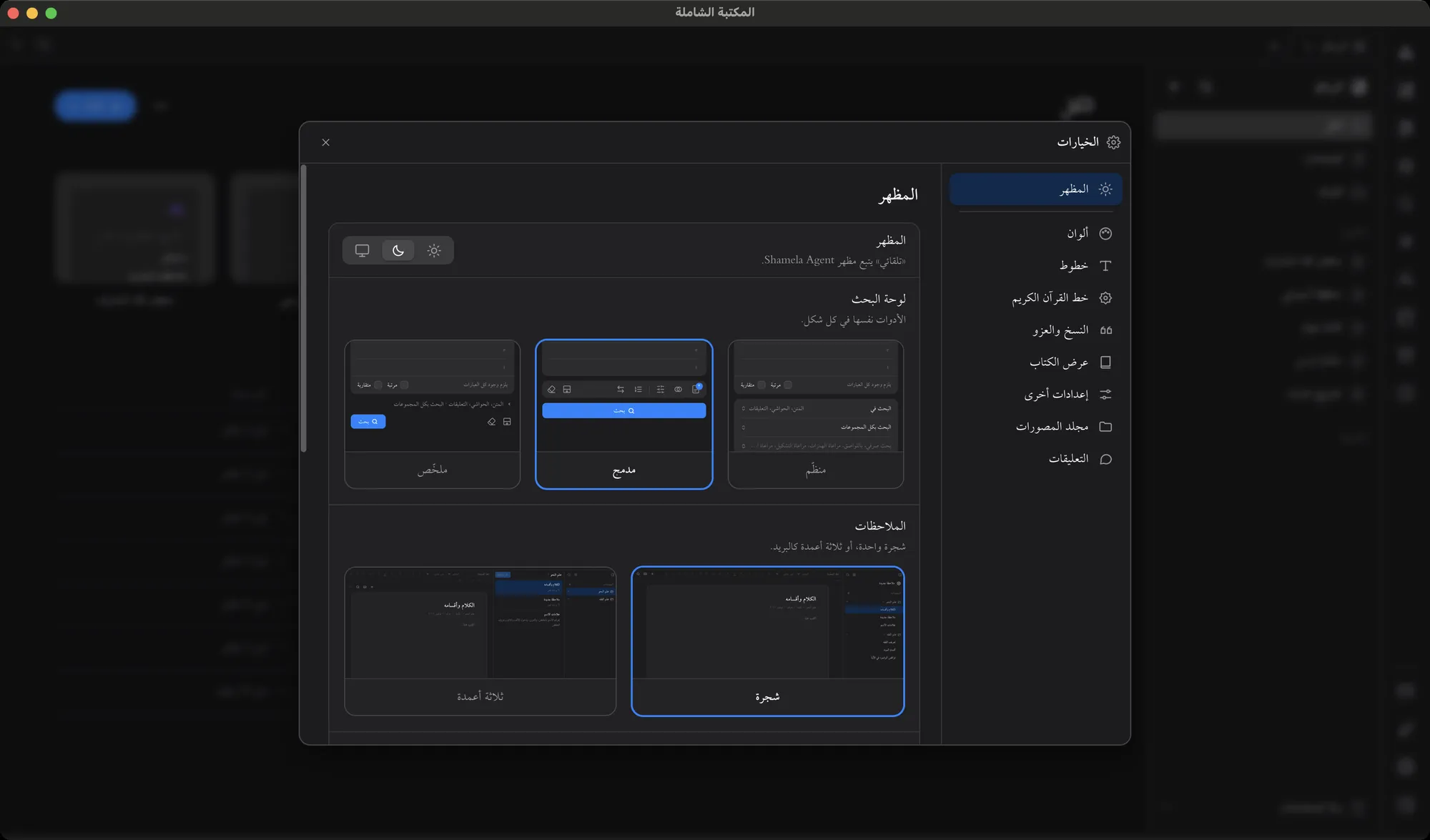
Every setting in one window. Each change saves itself.
Modern reads the same library, so your books and notes stay put. Choose Classic from the sidebar menu or Settings, and Shamela opens as it was.
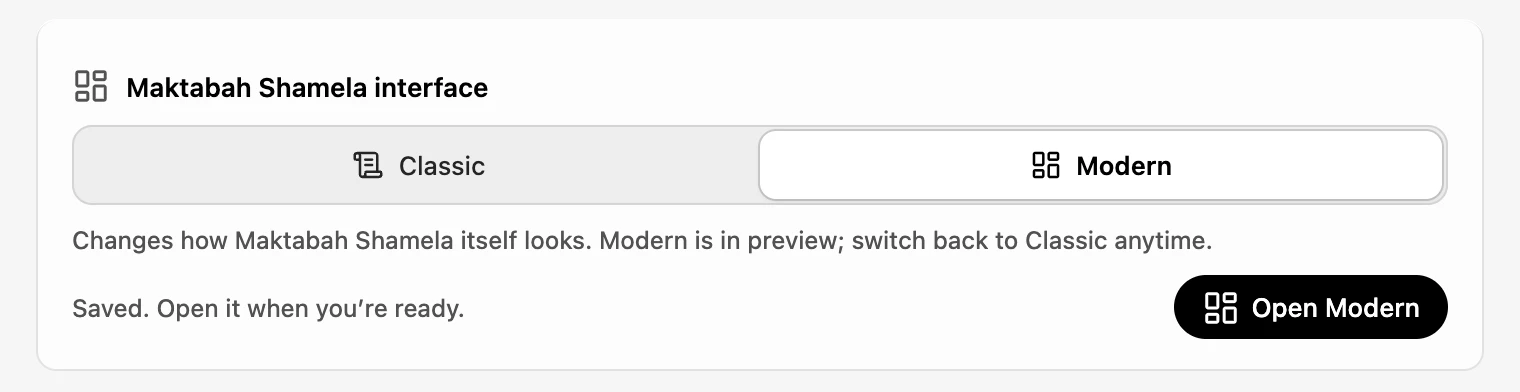
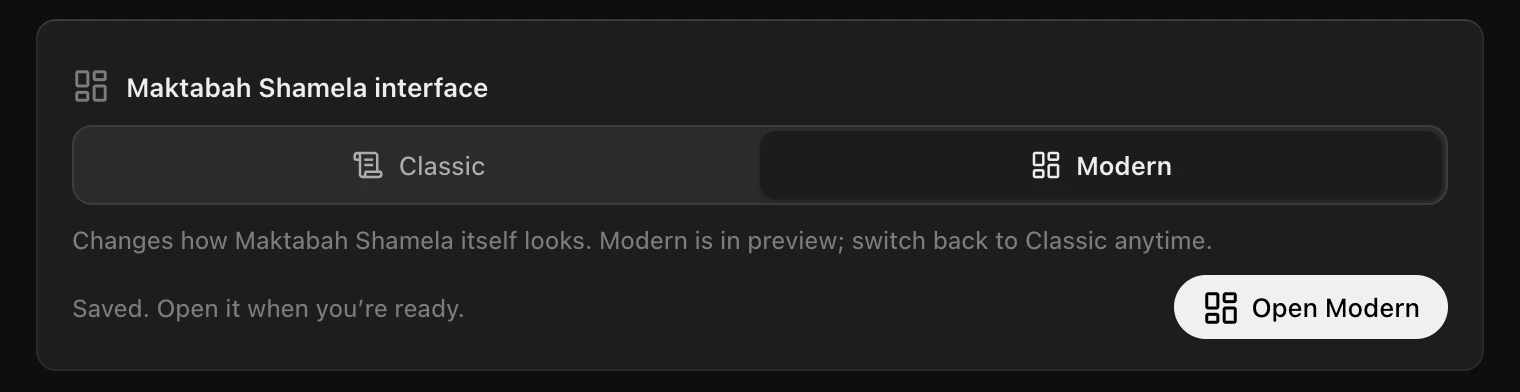
In Shamela Agent’s General settings, find Maktabah Shamela interface near the top.
Pick Modern, then Open Modern. Shamela redraws itself with the same books open.
In Options, pick a layout for Search, the Quran and Notes, and where the sidebar sits.
Choose Classic from the menu at the foot of the sidebar, or from Settings › General at any time.
No. Modern opens the same library and database as Classic, so your books, notes, favourites and saved sessions all stay where they are.
No. You install only Shamela Agent, not the tens of gigabytes of books, so it’s ready right away. Modern opens the books already in your Maktabah Shamela, so Shamela needs to be installed first.
No. Every Shamela tool is still there. Only the layout and icons change.
Yes, anytime, from the menu at the foot of the sidebar or Shamela Agent’s Settings. Classic stays exactly as it was.
Yes. In Shamela Agent’s Settings, set the Maktabah Shamela theme to Light, Dark or System, which follows Shamela Agent.
It opens the Shamela library already on your computer, with every tool in place.
Maktabah Shamela 4 (free) · Apple silicon Mac or Windows 10/11 · Claude or ChatGPT account or API key for AI